About Completing Tickets
Completing a ticket is how you record the outcome of a locate: which utilities you marked or cleared, how you marked them in the field, and any notes. It's the most important thing a locator does in LocateOps — it's what gets reported back to the call centre and the excavator.
This guide walks through recording each utility's outcome, choosing the field-marking types, adding notes, and pressing Complete — plus what happens behind the scenes after you do.
Marking Utilities During the Locate
Open the ticket and go to the Completion tab. Each utility on the ticket is a card. For every utility you record one outcome:
| Outcome | Meaning |
|---|---|
| Marked | You located and marked the utility in the field. |
| Field Clear | You were on site and there is no such utility in the dig area. |
| Office Clear | Records show no such utility — cleared without a field visit. |
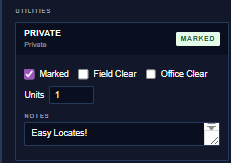
One outcome per utility
The three outcomes work like radio buttons: clicking one selects it and unselects the others. Clicking the one that's already selected unselects it, putting the utility back to “not yet decided”.
Every utility must have an outcome before you can complete the ticket. A utility left in the “not yet decided” state blocks the Complete button. This is deliberate — it stops you from accidentally closing out a locate you haven't finished.
Units and meters
- When you mark a utility, LocateOps asks for the number of units you located. This is required for a Marked outcome.
- Dedicated-locator (DL) codes work a little differently — instead of units they carry a meters value. The form shows the right field for the code automatically.
Clear outcomes (field or office) don't need units — there was nothing to locate.
Editing which utilities are on the ticket
If a utility is missing from the ticket, or one shouldn't be there, use Edit Utilities to add or remove station-code rows. This is available on any ticket — even Completed or Cancelled — as long as you have permission.
Field Marking Types
Field markings record how you marked the utilities on the ground. This information is reported to the call centre on completion.
Select every method you used:
| Marking | What it means |
|---|---|
| Paint | Marked with spray paint on the ground/pavement. |
| Flags | Marked with flags. |
| Stakes | Marked with stakes. |
| Sketch | Documented with a sketch / as-built drawing. |
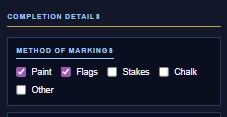
For call-centre tickets, the markings you select map to the method-of-markings flags reported back: Paint, Flags, and Stakes flow to On1Call; Paint vs Sketch chooses the response code for Irth tickets. So selecting them accurately matters beyond your own records.
Adding Completion Notes
There are two kinds of notes on a ticket, and they go to different places:
- Comments to Excavator (Remarks) — customer-facing. These can be sent out with the locate and reported to the call centre. Keep them professional.
- Internal Remarks — staff-only. Never sent anywhere external. Use these for notes to your own team.
Don't put internal or sensitive notes in Comments to Excavator — that field can leave the building.
The Complete Button
When every utility has an outcome and your markings and notes are in, you're ready to complete.
Before you can complete
LocateOps runs a pre-check: at least one outcome (Marked, Field Clear, or Office Clear) must be set on every utility. If any utility is still undecided, the Complete button is blocked and tells you why.
Completing
- Make sure every utility card shows an outcome.
- Set your field markings.
- Add any Comments to Excavator.
- Press Complete.

Hold For Review (HFR)
Some locators are set up so that their completions go through an audit before being finalised. This is the Hold-for-Review behaviour, and it changes what Complete does.
If your account has Hold for Review turned on, pressing Complete does not move the ticket straight to Completed. Instead the ticket goes into the audit queue for a reviewer to check. You'll see it land in the Audit status rather than Completed.
- Your completion details (markings, outcomes, notes) are all saved.
- An auditor reviews the ticket and either approves it (it becomes Completed) or sends it back.
- If it's sent back, you'll see it return so you can fix and resubmit.
Whether HFR applies is based on the assigned locator's setting, not whoever clicks Complete. If you're completing a ticket assigned to someone with HFR on, it follows their setting. The Auditor Workflow guide covers the review side in full.
What Happens After Complete
Pressing Complete (when HFR is off) does several things automatically:
- The ticket moves to Completed and is stamped with who completed it and when.
- A completion PDF is generated automatically (this is why a completion package needs to exist first).
- For call-centre tickets, a status update is queued to send back to the call centre — but it is not sent yet.
- For private tickets, a customer completion email is queued — also not sent yet.
Completing a ticket does not send anything out by itself. The call-centre status push and the customer email both wait until someone clicks Upload Tickets. This is covered in the Uploading Tickets guide — and it's the most common compliance gap, so don't skip that step.
Undoing a completion
If you completed a ticket by mistake, an Uncomplete action returns it to Assigned (or Unassigned if it had no assignee). The completion details are cleared and any generated package is voided.
Common Scenarios
“The Complete button won't let me press it.”
A utility is still undecided. Open the Completion tab and make sure every card shows Marked, Field Clear, or Office Clear.
“There's a utility on the ticket we don't locate.”
Use Edit Utilities to remove it, or mark it Office Clear with a note — whichever your company's process calls for.
“I marked it but it's asking for a number.”
A Marked outcome needs a units count (or meters for a DL code). Enter the amount you located.
“I completed it but the excavator says they got nothing.”
Completing only queues the email. Someone needs to click Upload Tickets to actually send it. See the Uploading Tickets guide.
Gotchas & Tips
Every utility needs an outcome. One undecided utility blocks Complete.
Complete ≠ sent. The call-centre push and customer email wait for Upload Tickets.
Marked needs units (or meters for DL codes). Clears don't.
HFR follows the assigned locator's setting, not the clicker's.
Record markings accurately — they're reported to the call centre, not just kept for your records.
Keep Comments to Excavator clean — that field can be sent externally. Use Internal Remarks for team notes.
Can't find what you need? We respond personally to every message.