Welcome to LocateOps
This guide gets you from your first sign-in to working confidently — setting your password, finding your way around, and knowing where to start based on your role. It takes about ten minutes.
LocateOps is one place for everything a locate team does: tickets arrive (from call centres or created by hand), get assigned, get worked in the field, and get closed out with a full audit trail. You'll spend most of your time on two screens — the Dashboard and the Tickets Board — and this guide points you to the deeper guides for everything else.
Your First Sign-In
Your administrator creates your account and you receive a temporary password (by email or directly from them). The first time you sign in, LocateOps walks you straight to a change-password screen.
- Go to locateops.cloud and sign in with your email and the temporary password.
- You'll be prompted to set a new password. Choose something only you know.
- Once it's set, you land on your Dashboard. You're in.
Until you set a new password, LocateOps keeps you on the password screen — you can't skip it. This is deliberate: temporary passwords are meant to be replaced immediately.
Forgot your password later? Use the password reset on the sign-in page, or ask your administrator to reset it (they can issue a fresh temporary one).
Finding Your Way Around
LocateOps looks a little different on a computer and on a phone, but it's the same app and the same data.
On a computer
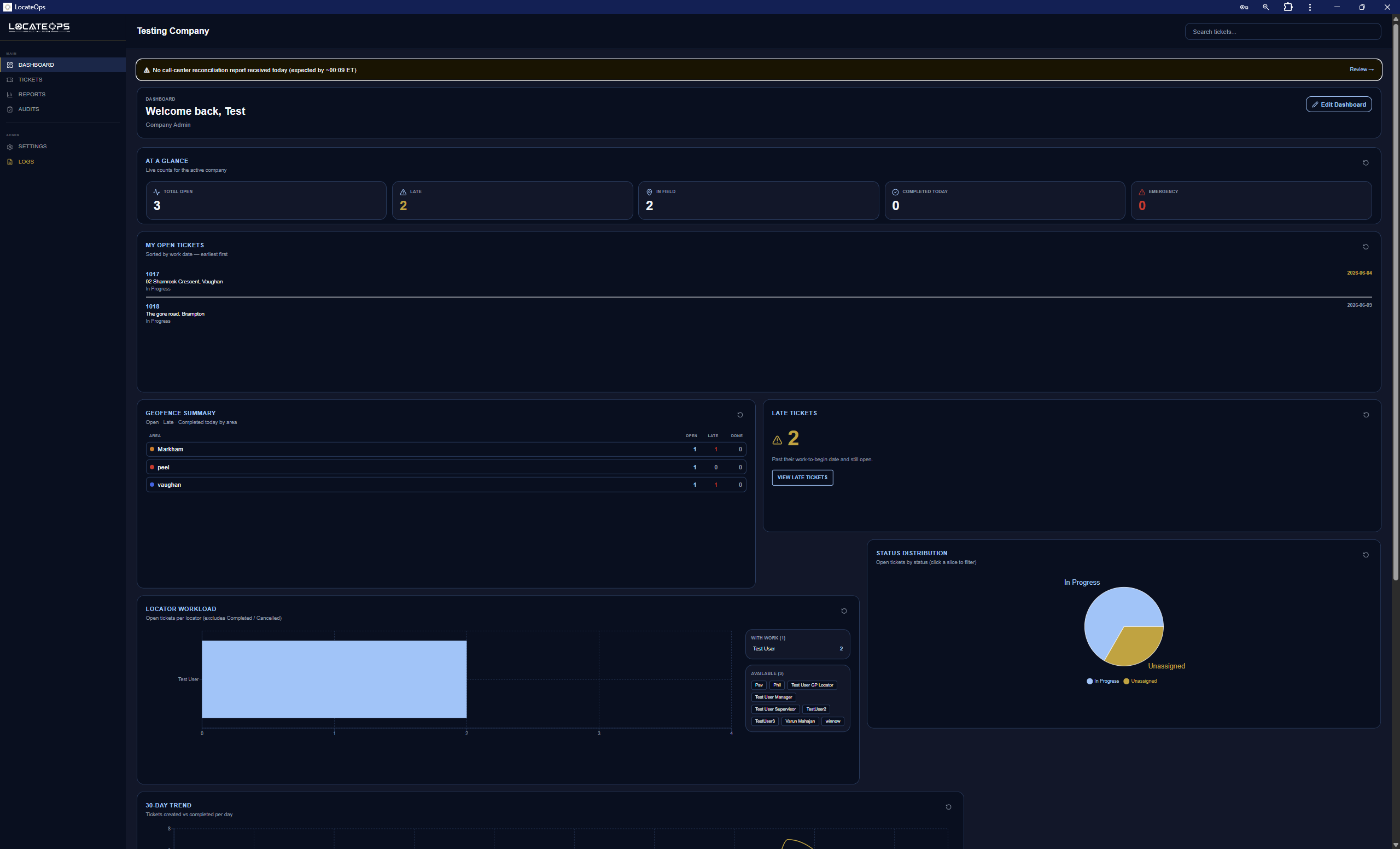
A sidebar down the left is your main menu. Depending on your role and permissions you'll see entries such as:
- Dashboard — your at-a-glance home screen.
- Tickets — the board where all locate work lives.
- Audits — the review queue (if you do audits).
- Reports — analytics and reconciliation (if you have access).
- Logs and Settings — administration (for admins).
On a phone
LocateOps automatically switches to a mobile layout on phones — built for the truck, with large tap targets and no fiddly hover menus. A bottom navigation bar holds your main destinations, and a hamburger menu holds the rest (Settings, Audits, Logs, sign out).
You don't choose between the desktop and mobile versions — LocateOps detects your device and shows the right one. Locators live in the mobile app; dispatchers and admins typically work on a computer.
Your Role Shapes What You See
LocateOps shows each person what's relevant to their job. A locator sees their own tickets and a focused dashboard; a dispatcher sees the whole company's board; an admin sees settings and configuration. So your screens may not match a coworker's — that's by design, not a bug.
The standard roles, briefly:
| Role | Day-to-day |
|---|---|
| Locator / Lead Hand | Work assigned tickets on a phone — mark utilities, sketch, complete, upload. |
| Dispatcher | Create, assign, and track tickets; manage customers. |
| Supervisor / Manager | Oversee the whole board, balance workload, run reports. |
| Auditor | Review completed locates in the audit queue. |
| Company Admin | Manage users, customers, branding, and settings. |
The full breakdown is in the Users & Permissions guide.
Set Up Your Account
Open your Account settings (from the sidebar profile menu, or the hamburger on mobile) to:
- Change your password any time.
- Update your profile — name, phone, and other details your team sees.
- Switch between light and dark mode — use the theme toggle. Your choice is remembered on every device.
Dark mode is easy on the eyes in a dim cab or at night; light mode is crisp in bright sun. Switch whenever — it's instant and per-person.
Install It on Your Phone
LocateOps is a web app you can install to your home screen — and once installed, it works in the field even without signal.
- Open locateops.cloud in your phone's browser and sign in.
- Use your browser's Add to Home Screen option to install it.
- Open it from the home-screen icon like any other app.
To keep working offline, open the app online at least once a week — your phone's browser can clear the offline cache after about a week of no use. Your weekly time at the office is ideal. Full details are in the Using LocateOps Offline guide.
Where to Start, by Role
If you're a locator
Open the app on your phone. Your assigned work is in My Tickets (and on the Dashboard). Tap a ticket, do the locate, mark the utilities and field markings, Complete, then Upload at the end of the job or shift. See Completing Tickets and Uploading Tickets.
If you're a dispatcher
Open the Tickets Board and live in the Unassigned and New Today quick views. Assign work to locators, create private tickets when a job didn't come through a call centre, and keep an eye on Late. See The Tickets Board and Creating Tickets.
If you're an administrator
Start in Settings. Add your team in Users & Permissions, set up your Customers, and apply your Branding. Site administrators onboarding a brand-new company have additional platform tools for company setup and call-centre connections — your LocateOps contact can walk you through those.
Where to Learn More
Every area of LocateOps has its own guide in this Help Center:
- The Tickets Board — navigating, filtering, and saved searches.
- Completing Tickets and Uploading Tickets — the core locator workflow.
- The Sketch Editor and Photos & Field Documentation — documenting the locate.
- The Dashboard and Reports — reading your numbers.
- Using LocateOps Offline — working in dead zones.
- Troubleshooting — quick fixes for common hiccups.
Gotchas & Tips
You must change your temporary password before you can do anything else — that's the first screen by design.
Your screens depend on your role — they won't always match a coworker's.
The phone and computer versions are the same live data — work on either, it syncs.
Install the app on your phone and open it online weekly so offline access is always ready when you need it.
Can't find what you need? We respond personally to every message.