About the Auditor Workflow
Auditing is a quality-control step. Before a completed locate is finalised and sent to the excavator, an auditor reviews it — filling out a checklist, optionally marking up the completion PDF — and then either approves it or sends it back for revision.
This guide is for the person doing the reviewing. It covers the audit queue, how tickets get there (two ways), the markup tools, the Field Audit Checklist, and the two outcomes: approve (which emails the excavator) or decline (which sends the ticket back).
How Tickets Reach the Audit Queue
There are two paths into the queue, and they behave slightly differently when you decline.
| Path | How it gets queued | What “decline” does |
|---|---|---|
| Manual review | A dispatcher, supervisor, or manager sends a completed ticket to the queue from the ticket's Actions menu. | Ticket → Needs Revision; the locator fixes it and resubmits. |
| Hold-for-Review (HFR) | A locator whose account has Hold for Review turned on completes a ticket — it goes straight to the queue automatically. | Ticket uncompletes back to In Progress for the locator to redo. |
You don't need to track which path a ticket took — the system handles the difference when you decline. Approving is identical either way.
The Audit Queue
Open Audits from the sidebar (visible if you have audit permission). The queue lists every ticket waiting for review.
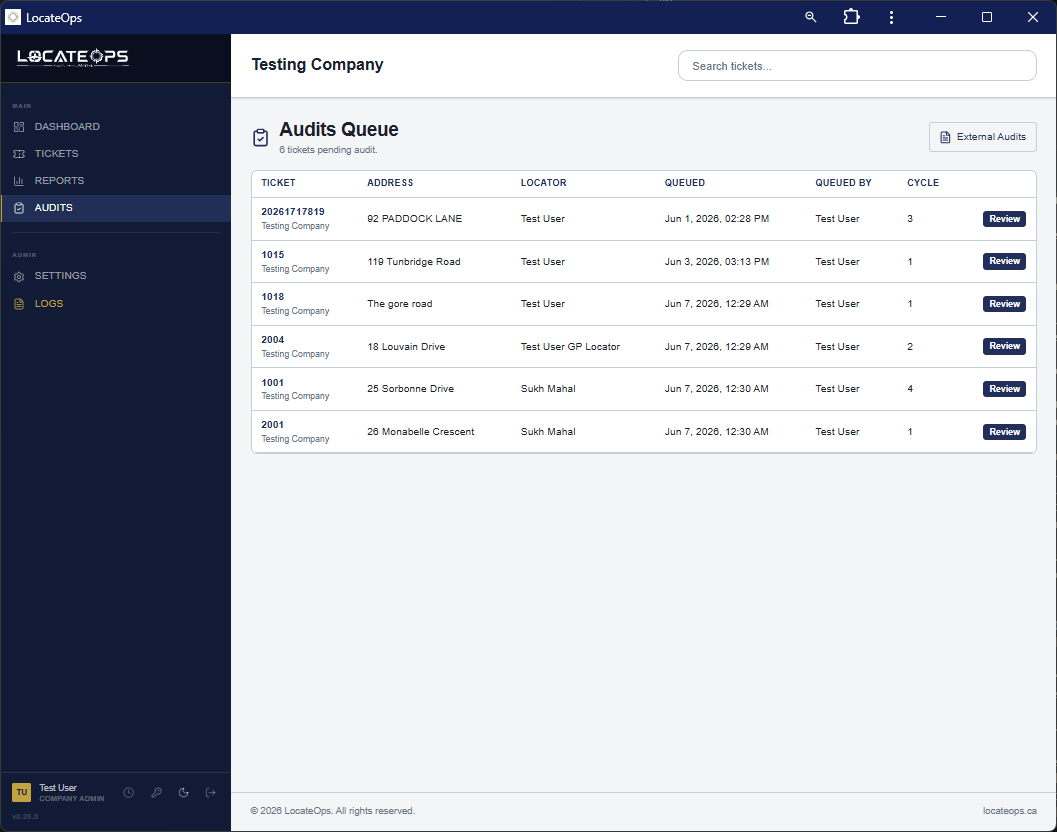
- Each row is a ticket in the queue.
- Click a row to open the ticket for audit.
- The queue shows only open cycles — once you decide a ticket, it leaves the queue.
Opening a Ticket for Audit
Opening a queued ticket gives you everything you need to review it: the ticket details, the completion utilities and their outcomes, the locator's sketch and photos, the completion PDF, and the audit tools.
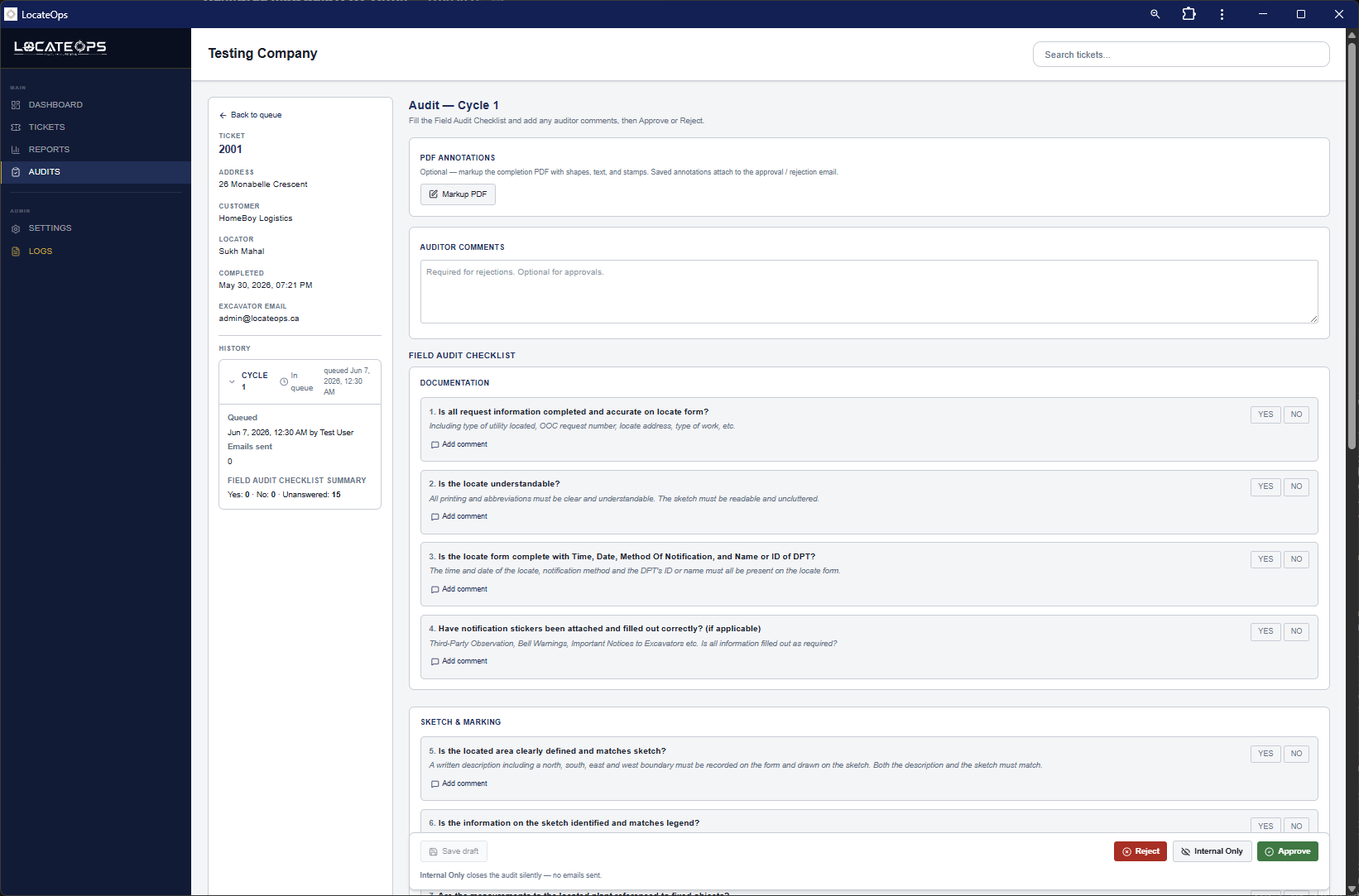
Your job here is to:
- Review the locate against your company's standards.
- Fill out the Field Audit Checklist.
- Optionally mark up the completion PDF with annotations.
- Add any comments.
- Approve or Decline.
PDF Markup Tools
If you need to point something out on the completion drawing, the annotation tool lets you mark up the PDF directly — think of it as a lightweight Bluebeam.
Open the annotation editor on the completion PDF. The tools include:
- Drawing — lines, shapes, and freehand markup to circle or highlight areas.
- Text — type notes directly onto the page.
- Stamps and symbols — quick markup elements.
- Colour — change the markup colour.
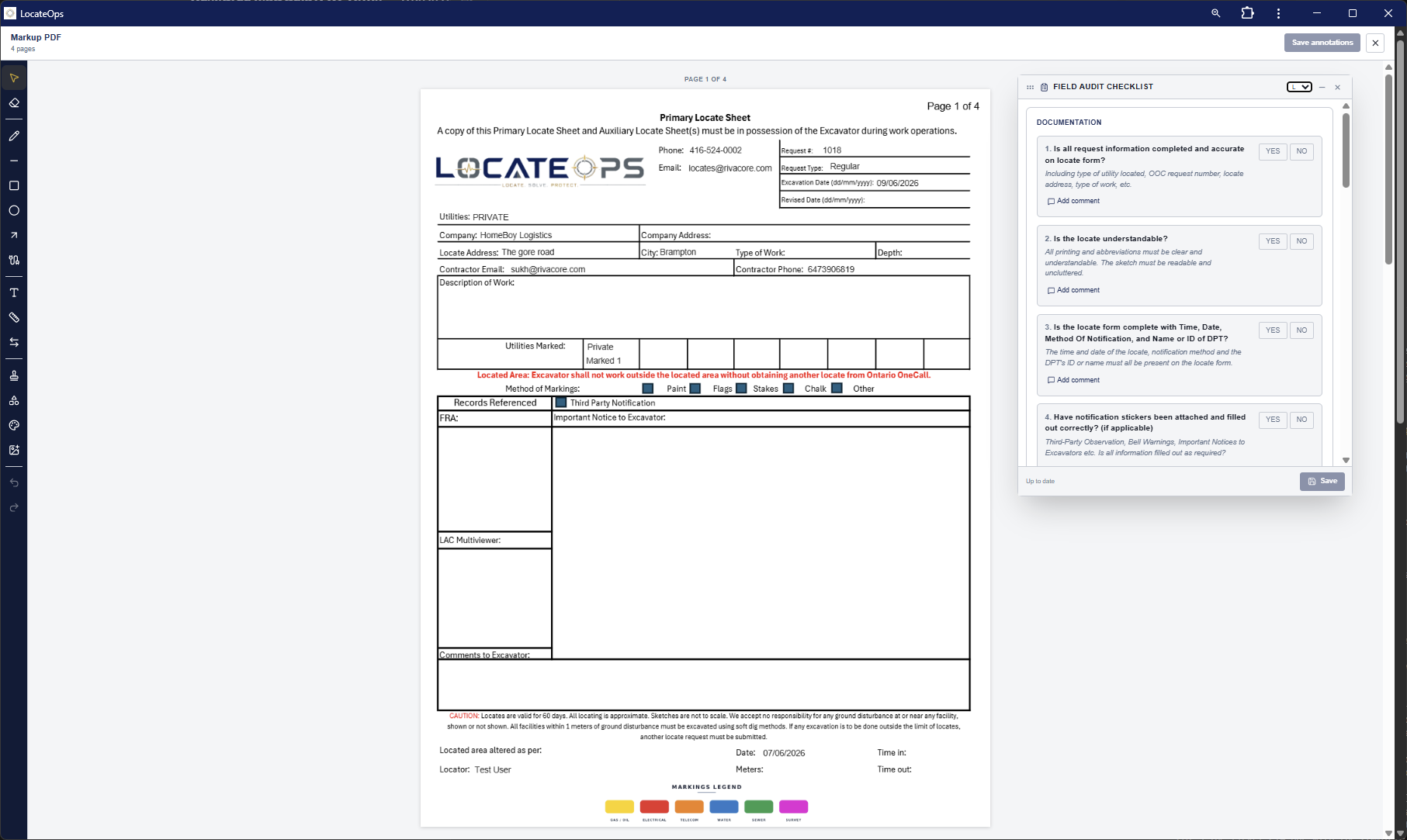
When you save, your markup is baked onto a copy of the PDF. The original completion PDF is always preserved separately.
On a phone, the annotation editor switches to a single-page view with pinch-to-zoom, a pan/draw toggle, and page arrows. A collapsible side tab holds the tools so the page fills the screen.
A floating, movable checklist panel lets you fill the Field Audit Checklist without leaving the markup view — handy when your findings come from looking at the drawing.
The Field Audit Checklist
The Field Audit Checklist (sometimes shown as “LAC” in the system) is a set of yes/no questions that standardise every review.
It's 15 questions grouped into three sections. Answer each yes or no, and add a comment on any question that needs explanation. The checklist is saved with the audit and is included as a PDF in the internal decision emails (to the locator and supervisor) so your team has a record of the review. It is not sent to the excavator.
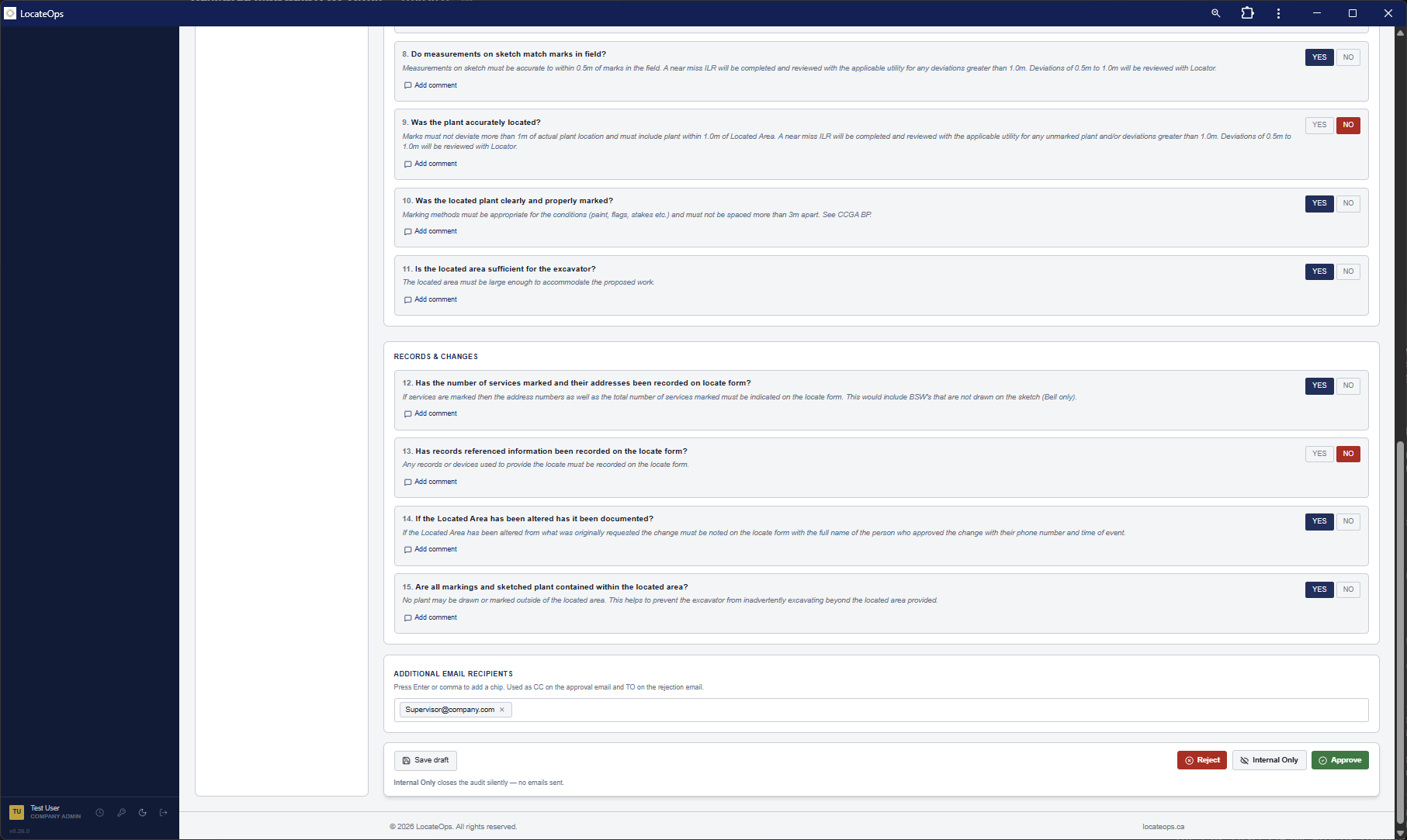
- Answer every applicable question.
- Use the per-question comment for anything that needs context.
- Your answers save as you go — you can come back to a draft.
Approving
Approving finalises the locate and notifies the excavator.
How to approve
- Finish the checklist and any markup.
- Add auditor comments if needed.
- Optionally add extra email recipients.
- Click Approve and confirm the destination (typically the excavator).
On approval, the ticket becomes Completed and an email is dispatched.
The approve-to-excavator email
Recipient: the ticket's excavator — plus any extra emails you added on the audit, and the ticket's additional completion email if one is set.
The excavator's approval email attaches the completion PDF (the locate package) only.
The Field Audit Checklist is never sent to the excavator. It's an internal quality-control document — the excavator receives the locate PDF and nothing else. (If the locate PDF can't be produced, the approval is held rather than sent without it.)
The checklist does travel internally: the locator gets their own approval notification, and that copy includes the Field Audit Checklist. Your annotated markup isn't attached to an approval at all — annotations go out only when you decline, so the locator can see what to fix.
The email is sent first, then the decision is recorded. If the email can't be sent, the audit stays open rather than silently marking itself approved — so you'll know to try again.
Declining (Needs Revision)
Declining sends the locate back to be fixed.
- Mark up the PDF to show what needs attention (your annotations go with the decline).
- Note the problems in your comments and the checklist.
- Click Decline / Reject and confirm.
What happens next depends on how the ticket was queued (see the table at the top):
- Manual-review tickets move to Needs Revision. The locator sees a banner with a Resubmit for Audit button; they fix the issues and resubmit, which starts a new audit cycle.
- HFR tickets uncomplete back to In Progress; the locator redoes the completion, which re-queues it automatically.
The decline email goes to the locator (and supervisor), and includes your annotated PDF and the checklist so they know exactly what to address.
External Audits
LocateOps also supports external audits — reviewing a PDF that isn't tied to a LocateOps ticket. You upload a PDF, annotate it, fill the checklist, and send a decision email. Find these under Audits → External Audits. The tools are the same; there's just no ticket attached.
External audits send an email on approval only — declining an external audit does not send an email.
Common Scenarios
“The queue is empty but I know tickets were completed.”
Tickets only reach the queue when someone sends them there (manual review) or when a Hold-for-Review locator completes one. A normally-completed ticket doesn't auto-queue.
“I approved but the excavator didn't get the email.”
Confirm the ticket's excavator email is correct. If the address was wrong, fix it and re-send. See the Troubleshooting guide.
“The locator says they can't see my notes.”
Annotations are sent on decline, not approve. If you approved, the locator gets the clean PDF; decline (or message them) if you need them to see markup.
Gotchas & Tips
The excavator's approval email is the locate PDF only — never the checklist. The checklist is internal; it goes to the locator's copy and to decline emails. Mark up before declining.
The decision email sends before the decision is recorded — if email fails, retry; the audit stays open.
Manual-review declines → Needs Revision (resubmit); HFR declines → uncomplete to In Progress. The system picks the right path.
Use the floating checklist panel while marking up so you don't lose your place.
The original completion PDF is always preserved — your markup never overwrites it.
Can't find what you need? We respond personally to every message.