About Photos & Documents
A locate is only as good as its evidence. LocateOps keeps two kinds of file on every ticket: photos you capture in the field, and documents — the call-centre paperwork, map images, and completion packages. This guide covers capturing photos, viewing and downloading documents, and the retention rules that keep everything safe.
Both live on the ticket and travel with it forever. LocateOps is built for long-term retention — utility-damage claims can surface years later — so nothing is ever truly deleted; it's hidden instead, and can be restored by an administrator.
Photos
Photos are the field record — the marked ground, the site conditions, anything worth proving you saw. Capturing them is a phone job.
Capturing a photo
- Open the ticket on your phone and find the Photos section (on the ticket's info screen).
- Add a photo — take a new one with your camera or pick one from your gallery.
- It uploads straight to the ticket. Repeat for as many as you need.
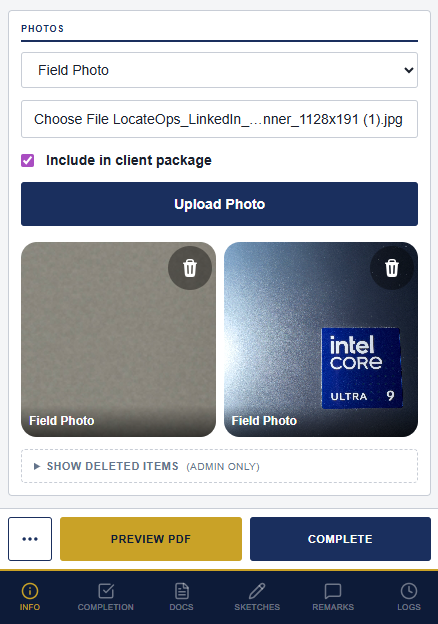
Photos can carry the location and time they were taken, so the record shows where and when each shot was captured — useful evidence on a disputed locate.
Photos upload directly and reliably even on a big file — you don't have to shrink them first. Capture what you need without worrying about size limits.
Viewing and removing photos
Tap a photo to view it full-size. To remove one, delete it from the grid — it disappears from the ticket. Deleting hides the photo; the underlying image is retained (an administrator can restore it). See Deleted Items & Retention below.
The Documents Tab
The Documents tab holds every file attached to the ticket that isn't a photo or a sketch — the paperwork.
What you'll typically find there:
| Document | Where it comes from |
|---|---|
| Call-centre paperwork | The original ticket data from the call centre (for example the ON1Call file, or the source email for Irth tickets). |
| Map images / selections | The dig-area map the call centre sent. |
| Completion package | The completion PDF generated when the ticket is completed. |
| Your own uploads | Anything you add to the ticket yourself. |
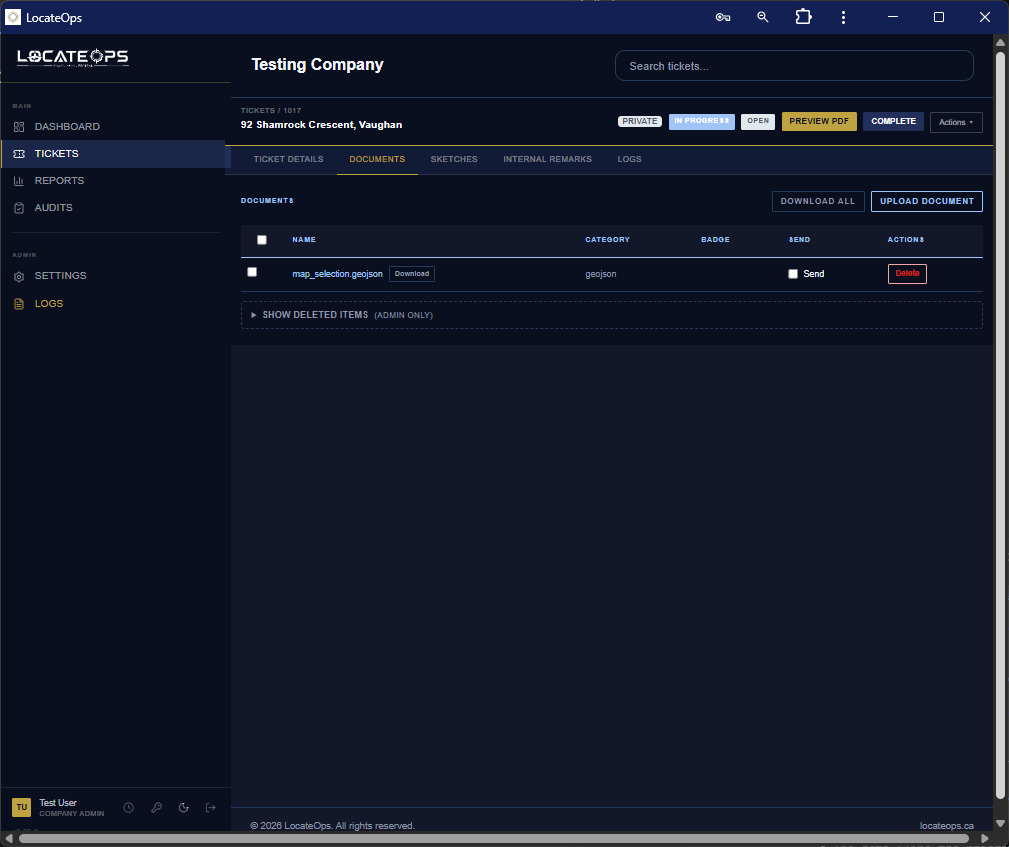
View vs Download
Each document offers two actions, because you usually want one or the other:
- View — opens the file in your browser to read it without saving.
- Download — saves the file to your device.
On a phone, tapping the filename opens it for viewing; a separate Download link saves it.
Downloading several at once
Need the whole packet? Download All bundles the ticket's documents into a single ZIP. On a computer you can also tick individual documents and use Download Selected to grab just those.
Voided documents are excluded from “Download All” — you get the current, valid set.
Uploading your own document
You can add a file to a ticket from the Documents tab — a permit, a photo of paperwork, a reference drawing. It's stored alongside the rest and travels with the ticket.
Voided Completion Packages
When a completion package is replaced — a new one is generated, the ticket is cancelled, or completion is undone — the old package isn't deleted. It's marked VOIDED (with a red badge) and kept for the record. This is on purpose: the history of what was issued, and when, is part of the audit trail.
A document with a VOIDED badge is a superseded completion package. The current package is the one without the badge — that's the one to send or rely on.
Deleted Items & Retention
LocateOps never permanently deletes a photo, document, or sketch — it hides them. This is a compliance requirement, not a quirk.
When you delete a photo or document, it's hidden from the normal view, but the file stays stored. An administrator with the right permission can restore it.
- On the Documents and Sketches tabs (and the mobile Photos section), administrators see a Show deleted items panel.
- Expanding it lists what's been hidden, with a Restore action.
- Restoring brings the item back onto the ticket and logs the restore in the ticket's history.
Some originals can't be deleted at all — the call centre's original ticket file and voided completion packages are protected, because they're part of the permanent record.
Because of retention rules, “delete” means hide, and storage is kept for years. If you remove the wrong file, don't panic — an administrator can restore it.
Offline
Photos and documents need a connection to view and download — they aren't cached for offline use. In the field with no signal you can still view a ticket and your sketches (read-only) and record completion work; the documents and photo files come back when you reconnect. See Using LocateOps Offline.
Common Scenarios
“I need to send someone the whole packet.”
Open the Documents tab and use Download All for a single ZIP of the ticket's current documents (voided ones are left out).
“There are two completion PDFs on the ticket.”
One has a VOIDED badge — that's the old, superseded package. Use the one without the badge.
“I deleted a photo I needed.”
Nothing is lost. Ask an administrator to open Show deleted items and Restore it.
“My photos didn't upload.”
Confirm you had a connection when you added them — photos need to reach the server. Reconnect and re-add any that didn't take.
Gotchas & Tips
“Delete” means hide, not erase. Files are retained for years and can be restored by an admin.
The VOIDED badge marks a superseded completion package — use the un-badged one.
Photos and documents need a connection — they're not available offline.
Call-centre originals can't be deleted — they're part of the permanent record.
Capture photos generously in the field — they're your evidence, they carry location and time, and storage isn't a worry.
Can't find what you need? We respond personally to every message.