About Customer Management
Customers are the companies and people you perform locates for. LocateOps keeps a customer list per company, and that list does real work: it powers the customer picker when you create a private ticket, and a customer's email address is where the completion notice is sent. This guide covers adding, editing, and managing customers.
Open Settings → Customers. You need customer-management permission (granted by default to Company Admins, Managers, Supervisors, and Dispatchers).
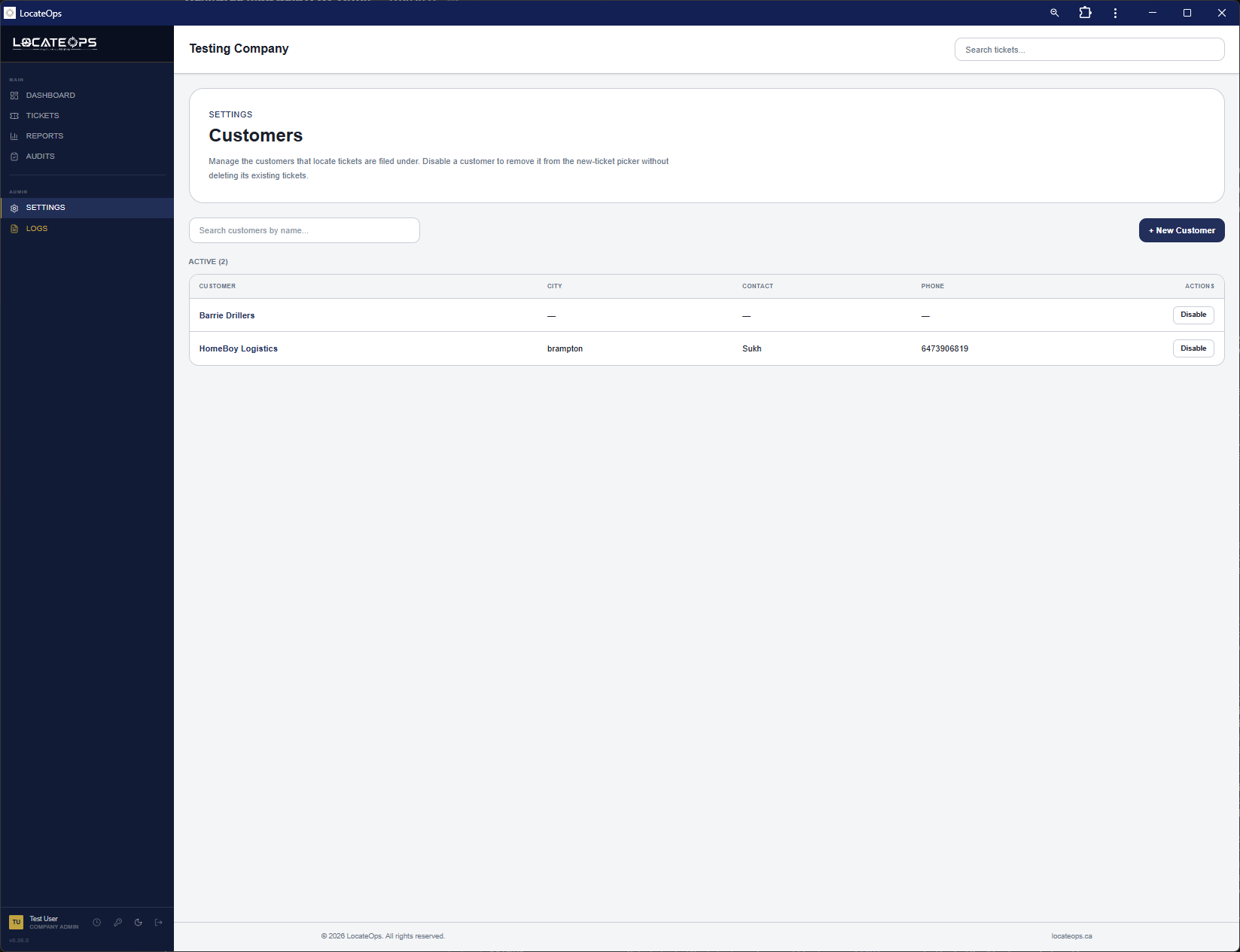
The Customer List
The customers page lists every customer in your company, active and inactive, with a status indicator. From here you can:
- Add a new customer.
- Open a customer to view or edit their details.
- Enable / disable a customer.
Customers are scoped to your company — you only ever see and manage your own company's customers.
Adding a Customer
- Click + New Customer.
- Fill in the fields (only the name is required).
- Save. The new customer is active immediately and available in the new-ticket picker.
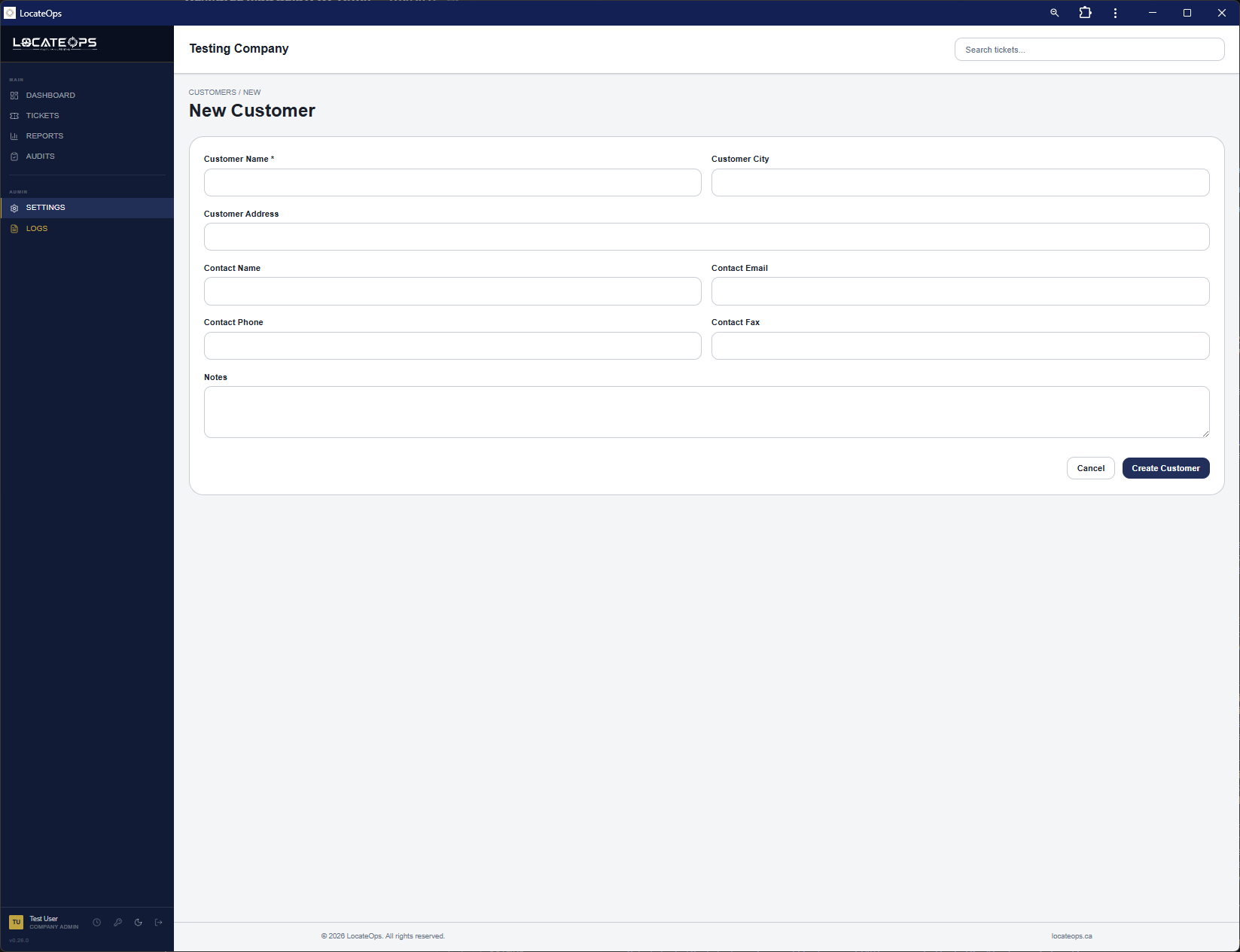
Customer fields
| Field | Notes |
|---|---|
| Customer name | Required. The company or individual you locate for. |
| Address | Street address. |
| City | City / town. |
| Contact name | The person to reach. |
| Contact email | Important — the completion-email recipient for private tickets (see below). |
| Contact phone | Phone number. |
| Contact fax | Fax, if used. |
| Notes | Free-text notes about the customer. |
Editing a Customer
Open a customer from the list to edit any of their fields — name, address, contact details, notes — and save. Changes apply going forward; they don't rewrite tickets that already captured the old details (a private ticket copies the customer's contact info at creation time).
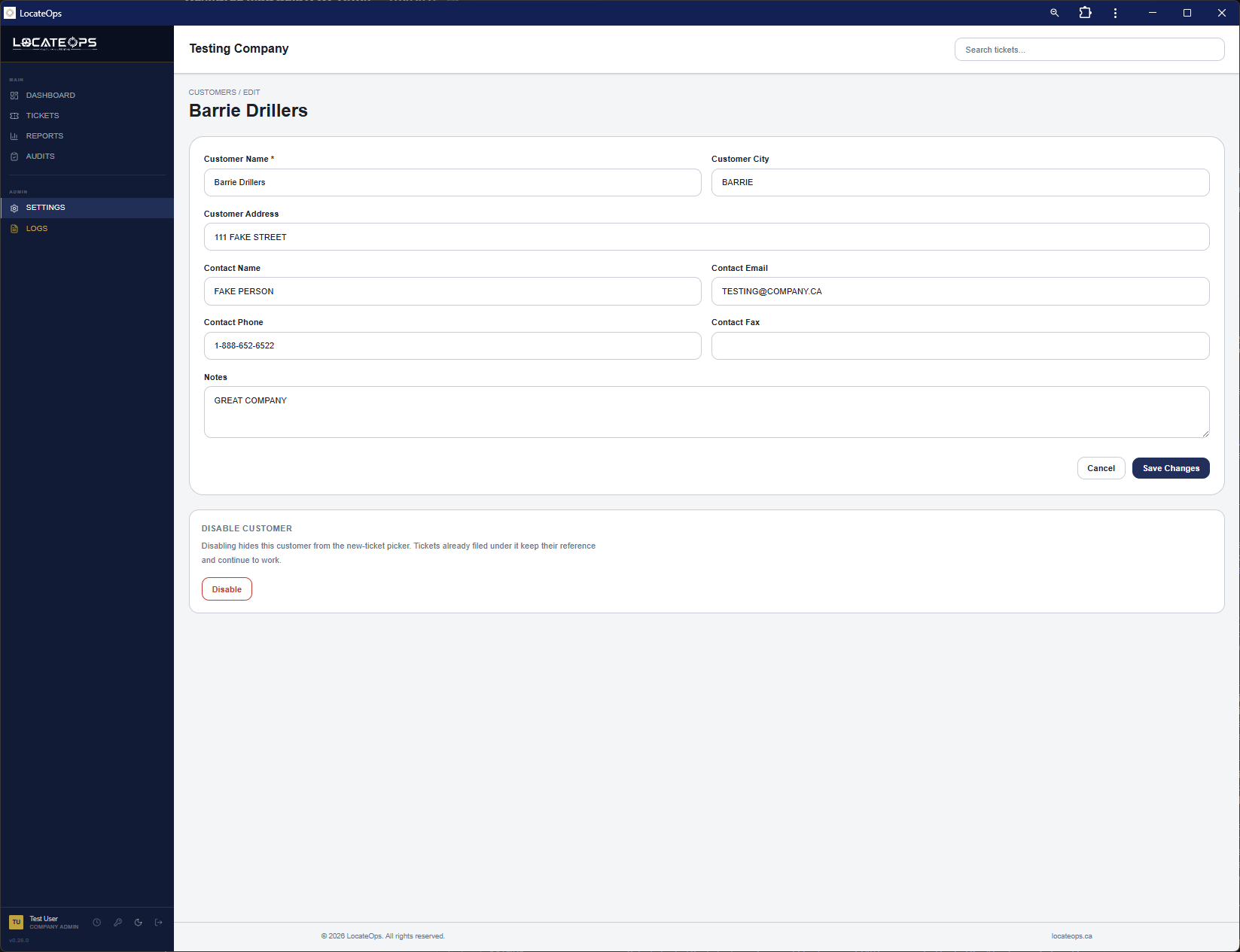
Enabling & Disabling Customers
LocateOps never deletes customers — it disables them. That's because past tickets reference them, and those records must be preserved.
Use the Enable / Disable toggle on a customer:
- A disabled customer disappears from the new-ticket picker — you can't start new tickets for them.
- Disabling does not affect existing tickets that already reference the customer — those stay intact.
- Re-enable any time to bring them back into the picker.
There is no delete. If a customer should no longer be used, disable them. This keeps your historical tickets whole.
Linking Customers to Private Tickets
This is where the customer list earns its keep. When you create a private (in-system) ticket, you pick a customer, and their details flow onto the ticket.
On creating a private ticket, the selected customer's contact information maps into the ticket's excavator fields:
| Ticket field | Comes from the customer |
|---|---|
| Excavator | Customer name |
| Excavator contact name | Contact name |
| Excavator phone | Contact phone |
| Excavator email | Contact email |
So the customer you choose becomes the excavator on the private ticket — no re-typing. See the Creating Tickets guide for the full create flow.
Only active customers appear in the picker. Disable a customer and they drop out of new-ticket creation while staying on their existing tickets.
Customer Email = Excavator Email
The single most important thing to understand about customers: their email address is the completion-notice recipient.
When a private ticket is completed and uploaded, LocateOps emails the completion package to the ticket's excavator email — which, for a private ticket, came from the customer's contact email. If the customer has no email on file, there's nowhere to send it and the completion email is skipped.
A customer with no email address means no completion notice can be sent for their private tickets. Make filling in the contact email part of adding every customer.
If a completion needs to reach more than one address, add the extra one in the ticket's Additional completion email field — the customer is the main recipient and the extra address is CC'd.
Common Scenarios
“A customer isn't showing up when I create a ticket.”
They're either not added yet or disabled. Add them, or re-enable them from Settings → Customers, then they'll appear in the picker.
“The completion email went to the wrong address.”
Update the customer's contact email (or the ticket's excavator email directly). For a private ticket the completion goes to the customer's email.
“We stopped working with a customer.”
Disable them — don't try to delete. Their past tickets stay intact and they're removed from new-ticket creation.
“A customer's details changed.”
Open them in Settings → Customers and edit. Existing tickets keep the details they captured at creation; new tickets use the updated ones.
Gotchas & Tips
No delete — only disable. Customers are kept for their links to past tickets.
No contact email = no private completion notice. Always capture the email.
Private tickets copy customer contact info at creation — later edits don't rewrite existing tickets.
Only active customers appear in the new-ticket picker.
Name is the only required field, but the contact email is the one that matters most for completions.
Can't find what you need? We respond personally to every message.