About Users & Permissions
LocateOps controls who can do what through roles. Each user has a role; each role grants a set of permissions. This guide explains the standard roles, the permissions that matter most, and how access is granted — through the role editor in the UI, and for a few platform-level powers, by a site administrator.
User and role management lives under Settings → Users and Settings → Roles. You need the matching permission to see them.
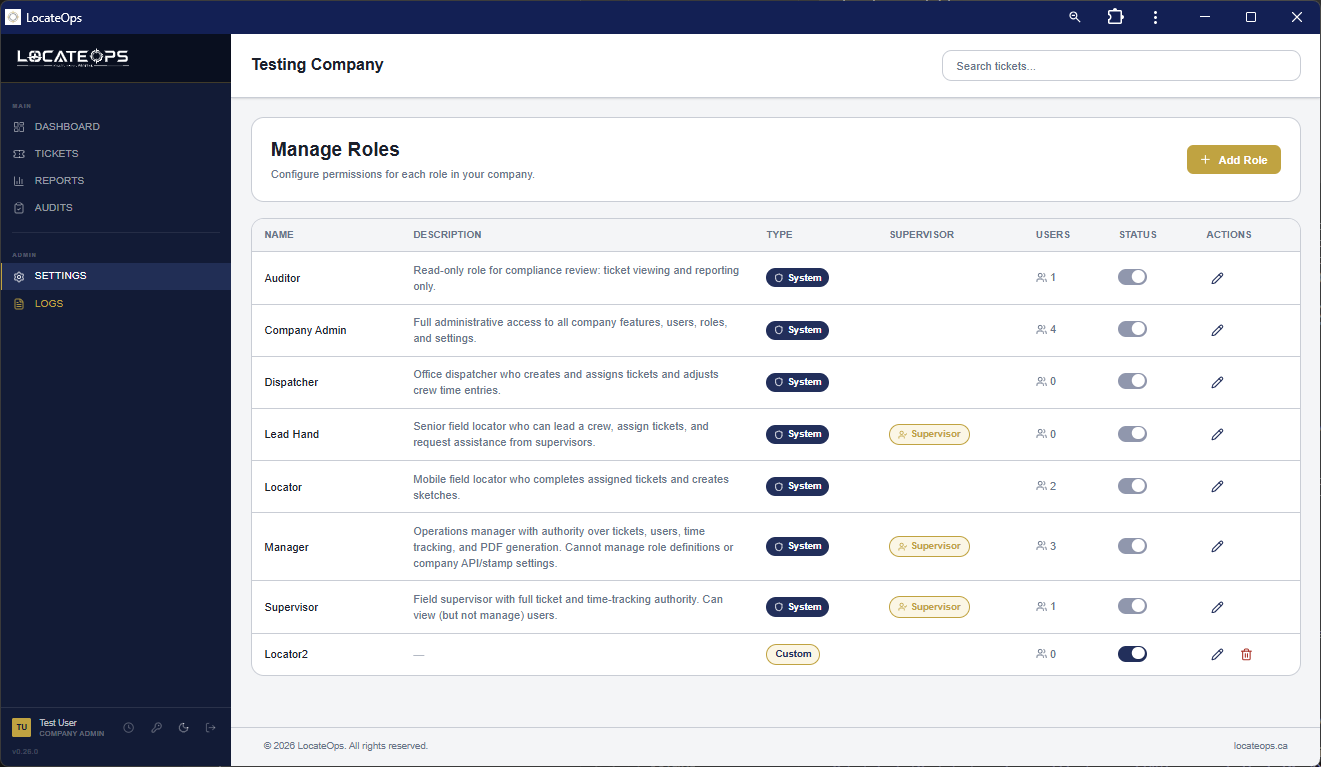
The Standard Roles
Every company starts with seven standard roles, from most to least powerful:
| Role | Built for | Roughly can |
|---|---|---|
| Company Admin | Running the company | Almost everything within the company. |
| Manager | Operations management | Most things except a few sensitive settings. |
| Supervisor | Crew supervision | Manage tickets and crews; not company-wide settings. |
| Dispatcher | Office workflow | Create, assign, and manage tickets; customers. |
| Lead Hand | Crew lead | A locator with a bit more reach. |
| Locator | Field work | Work their own tickets on mobile. |
| Auditor | Quality review | Operate the audit queue and view reports. |
Role names can be customised per company, and you can create your own roles. But these seven are the seeded baseline, and most companies use them as-is. A site administrator is a separate, platform-level role that operates across every company.
How Permissions Work
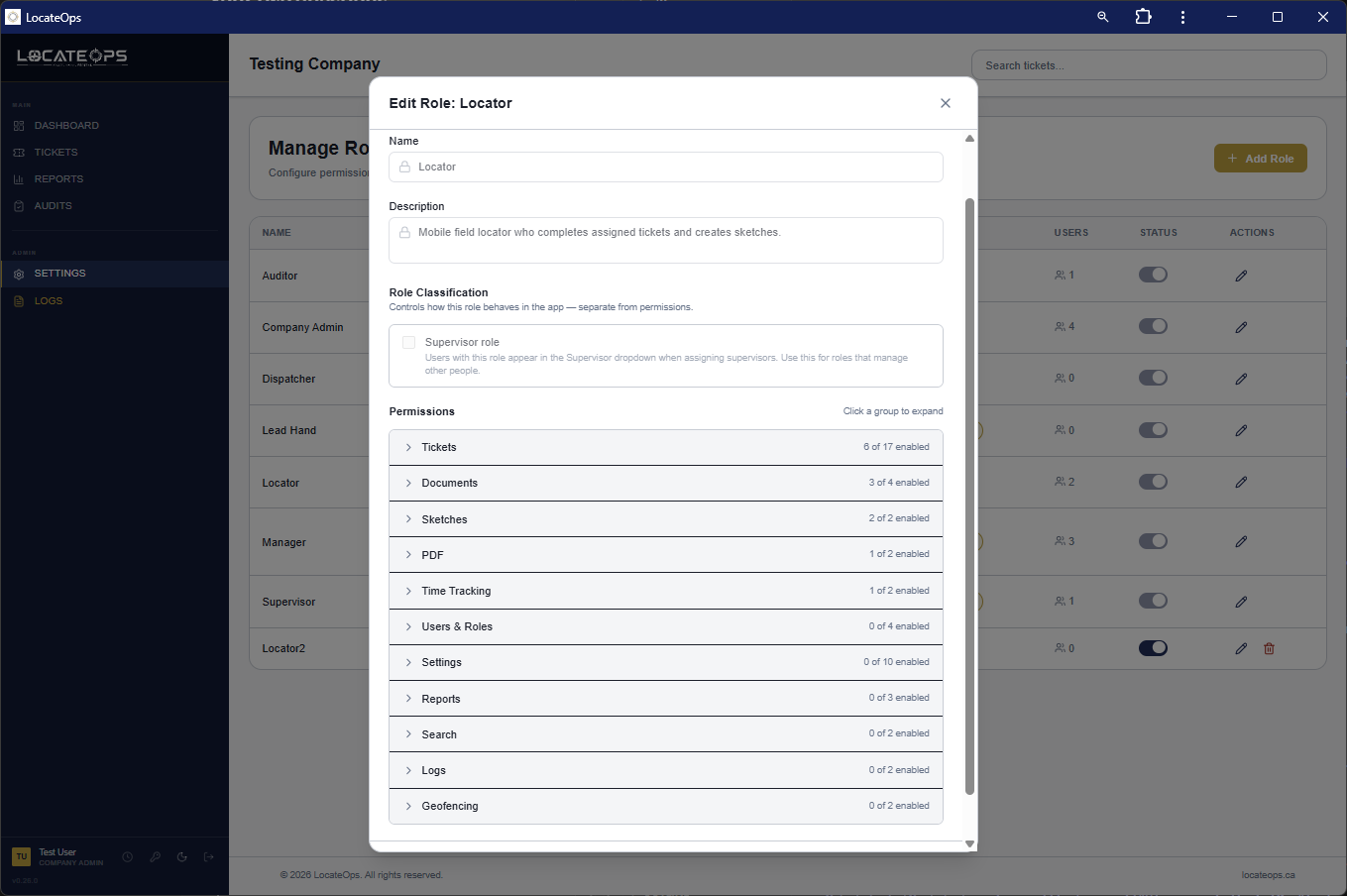
A permission is a single capability — “create tickets”, “void PDFs”, “manage users”. A role is just a checklist of which permissions are on.
Key things to understand:
- Permissions are grouped (Tickets, Documents, Sketches, PDF, Users & Roles, Settings, Reports, Search, Logs).
- A role grants a permission by having its checkbox on. Anything not explicitly granted is off.
- You can only grant permissions you hold yourself — the “hierarchy guard”. You can't create a role more powerful than your own, even by accident.
- Gating is by capability, not by role name — so renaming a role never changes what it can do.
Permissions Worth Knowing
A few permissions come up often:
| Permission (plain name) | What it unlocks |
|---|---|
| Manage settings | Access to company settings areas. |
| Manage users / roles | Adding users and editing roles. |
| Review / Audit | Sending tickets to the audit queue (Review) and operating it (Audit). |
| Restore deleted items | Bringing back soft-deleted documents, photos, sketches. |
| Export CSV / Reports | Exporting tickets and running reports. |
| Call-centre management | Managing a company's ON1Call / Irth credentials (site-admin level). |
| Reconciliation digest email | Receiving the nightly Good Night reconciliation digest. |
| Manage / grant utility owners | Creating utility-owner accounts (site-admin) vs granting them access (company admin). |
Some permissions are deliberately site-admin-only — for example, fully managing utility-owner accounts and call-centre credential management default to the site administrator. Company admins get the everyday equivalents (like granting an existing utility owner access).
Granting Access
There are two ways access gets granted: through the role editor (the normal way), and by a site administrator for platform-level powers.
Through the role editor (UI)
- Open Settings → Roles.
- Open the role you want to change (or create a new one).
- Toggle the permission checkboxes on or off.
- Save. Everyone with that role gets the change.
Then assign the role to a user in Settings → Users. To give one person more access, either move them to a role that has it or adjust their role's permissions (remembering it affects everyone with that role).
Site-administrator grants
A handful of platform-level capabilities — call-centre credential management, full utility-owner administration, and similar — sit with the site administrator rather than being toggled on a normal company role. If a company needs one of these, a site administrator enables it. In practice that means: if you can't find a permission in your role editor, it's a site-admin-level grant — ask your site administrator.
Because site admins can grant any permission (they're not bound by the hierarchy guard the way a company admin is), they're the right people to set up the unusual, platform-level access a company occasionally needs.
Hold for Review — a Per-User Setting
Separate from roles, each user has a Hold for Review toggle. When it's on, that locator's completions are routed into the audit queue automatically instead of going straight to Completed. Set it per user in the user editor (you need the toggle permission). See the Completing Tickets and Auditor Workflow guides for how it behaves.
Lifecycle Reminders
- New user — add them in Settings → Users with a role; they set their password on first sign-in.
- Role change — change their role, or edit the role's permissions (affects everyone on it).
- Departure — deactivate, never delete; their history is preserved.
- Moving companies — not supported; deactivate here, recreate in the other company.
Common Scenarios
“I need a dispatcher who can also run reports.”
Either assign them a role that includes reporting, or add the reports permission to a role they hold (remembering it applies to everyone with that role). For one person only, consider a custom role.
“A permission I want isn't in the role editor.”
It's likely a site-admin-level grant (call-centre management, full utility-owner admin). Ask your site administrator.
“Someone should stop seeing certain tickets.”
Adjust their role's permissions, or move them to a more limited role. Access follows the role's capabilities.
“I want this locator's work reviewed before it goes out.”
Turn on Hold for Review for that user — their completions will route through the audit queue.
Gotchas & Tips
You can't grant permissions above your own — the hierarchy guard protects against privilege escalation.
Editing a role affects everyone who has it. For one-person tweaks, use a dedicated role.
Gating is by capability, not role name — renaming a role is always safe.
Some powers are site-admin-only — if you can't find a permission, ask a site administrator.
Hold for Review is per-user, not a role — set it on the individual locator.
Can't find what you need? We respond personally to every message.