About Company Settings
As a company administrator you manage the people, customers, and configuration for your company in LocateOps. This guide is your map of the Settings area — what's there, how to use it, and just as importantly, what you can't change (and why).
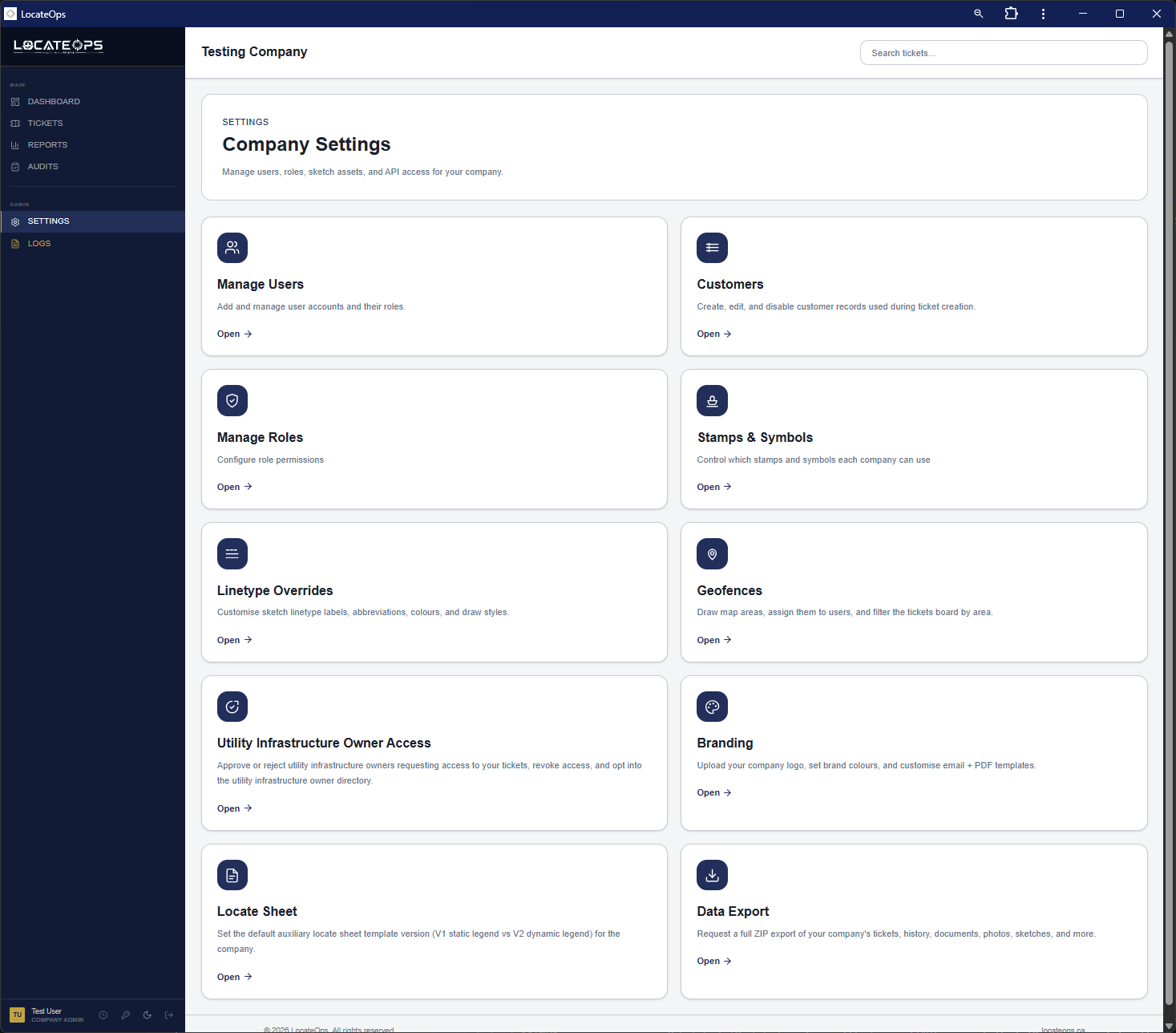
Open Settings from the sidebar (or the hamburger menu on mobile). You'll see a grid of tiles. Which tiles appear depends on your permissions; this guide covers the ones available to a company admin.
Managing Users
Users are the people in your company who sign in to LocateOps. You add them, set their role, and deactivate them when they leave.
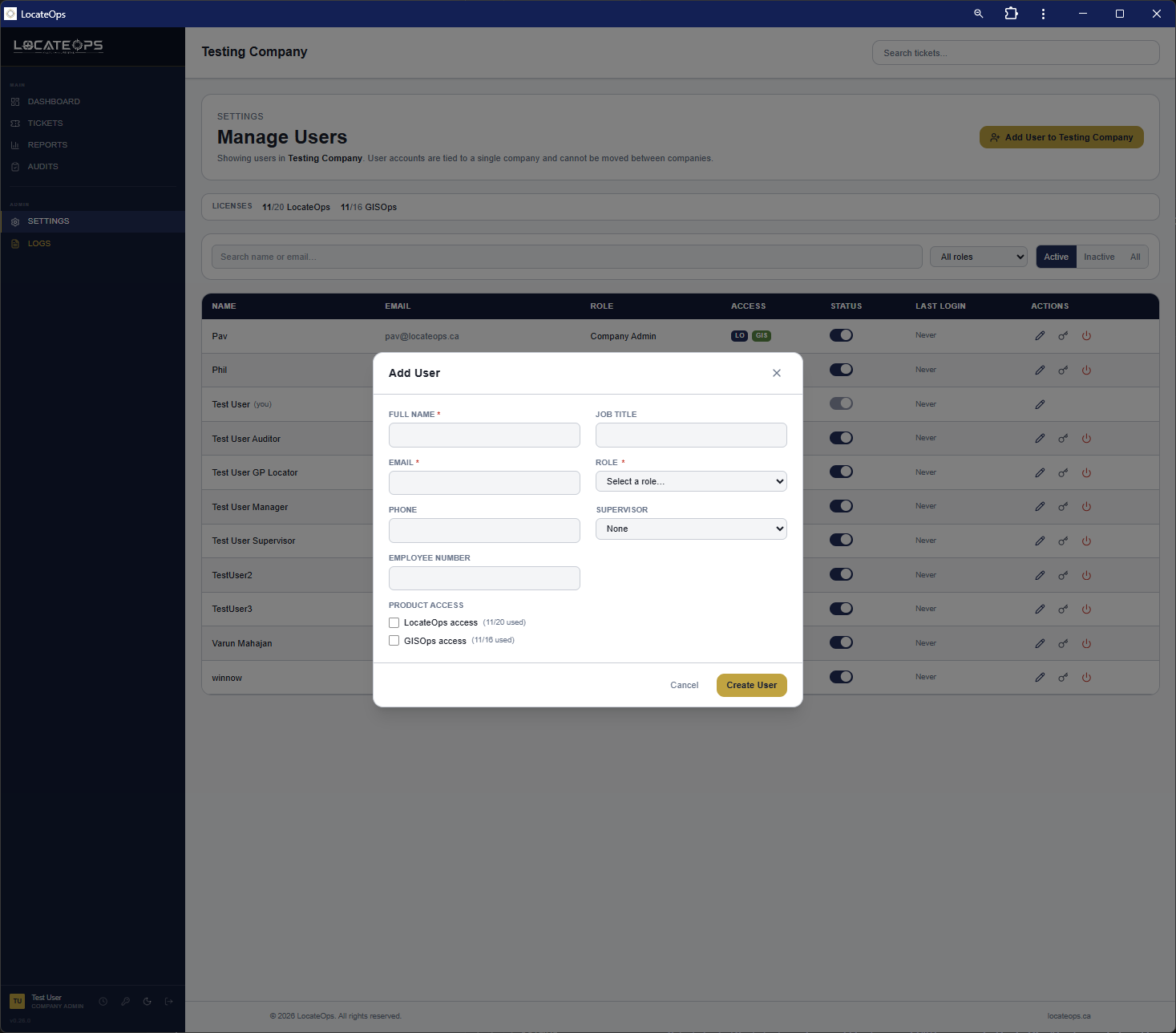
Adding a user
- Open Settings → Users.
- Click Add User (or Invite).
- Enter their name, email, and choose a role (Locator, Dispatcher, Supervisor, and so on — see the Users & Permissions guide).
- Save. The new user gets a temporary password and is prompted to change it on first sign-in.
Editing a user
You can change a user's name, role, supervisor, and other profile details. You can also toggle their Hold for Review setting, which routes their completions through the audit queue.
Deactivating a user
When someone leaves, deactivate them rather than deleting — LocateOps never deletes users (their work history must be preserved). A deactivated user can't sign in but stays attached to all their past tickets.
Users can't be moved between companies. A person's company is set when their account is created and can't be changed. If someone moves to a different company on the platform, deactivate their old account and have the new company create a fresh one.
Customers
Customers are the companies and people you do locates for. They're used when creating private tickets and as the completion-email recipient.
Open Settings → Customers to manage your customer list. You can add new customers and enable/disable existing ones. Disabled customers drop out of the new-ticket picker but stay on any tickets that already reference them.
Customers are never deleted — only disabled — because they're referenced by past tickets. The full set of customer fields and how customer email feeds the completion notice is covered in the Customer Management guide.
Keep customer email addresses up to date — for private tickets, the customer's email is where the completion notice is sent.
Station Code Catalog
Station codes are the utility codes your company is registered to locate. They drive which utilities appear when creating and completing tickets.
Your station-code catalog determines the utilities you can select on a ticket and which codes get automatically included. Setting up and onboarding station codes — especially dedicated-locator (DL) codes and the “include when not suppressed” behaviour — is primarily a site-admin task — your site administrator handles it.
If your catalog is empty, you can still create tickets using the Private utility option (see the Creating Tickets guide). You don't have to wait for the catalog to be complete to start working.
Branding
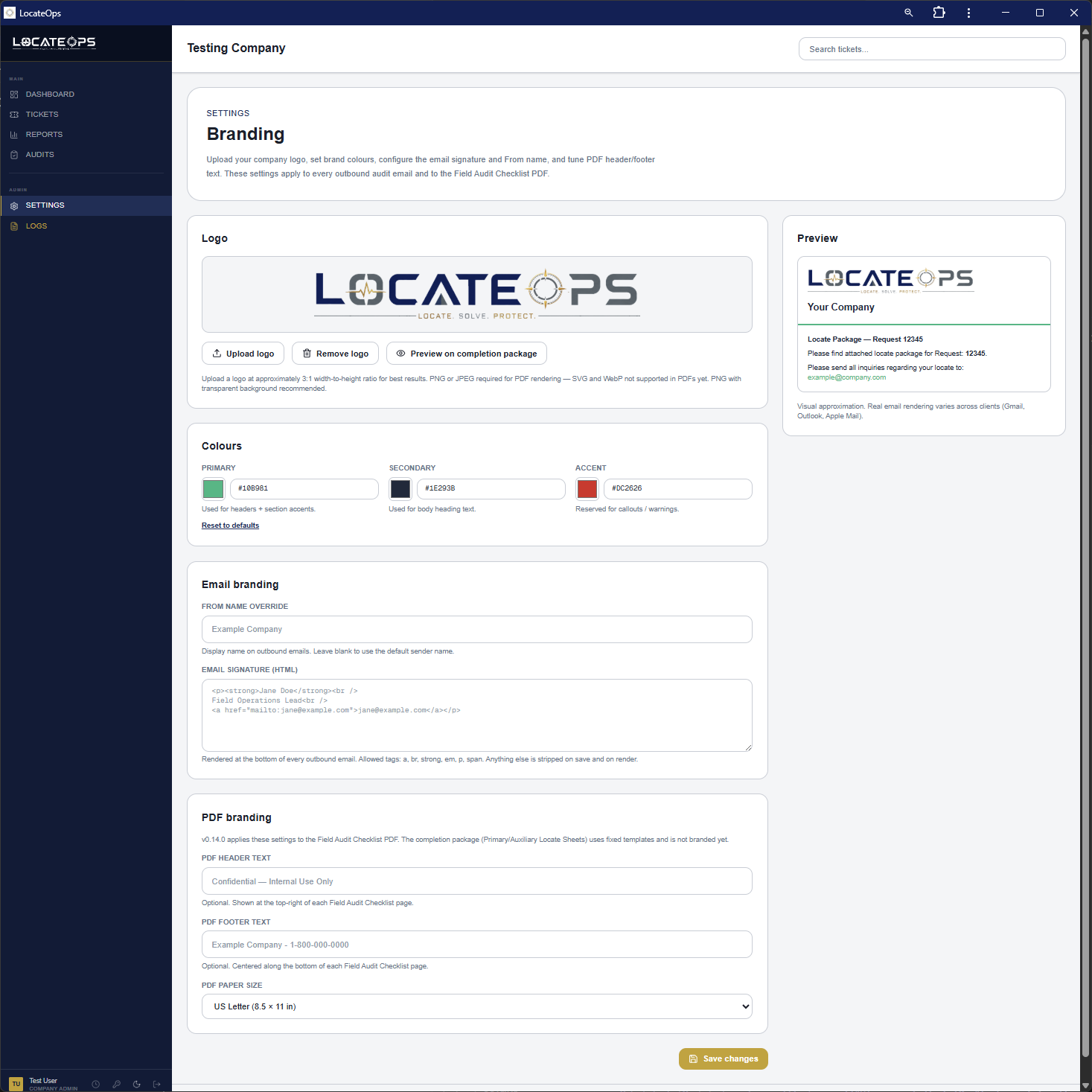
Under Settings → Branding you can set your company's logo, brand colours, email signature, and PDF header/footer text. These apply to outbound emails and the Field Audit Checklist PDF, so your customers and excavators see your identity, not a generic one.
Other Company Settings
Depending on your permissions you may also see tiles for:
- Roles — define what each role can do (see the Users & Permissions guide).
- Linetypes — customise sketch line styles for your company.
- Utility Owner Access — grant external utility-owner accounts read-only access to your tickets.
- Data Export — request a full ZIP export of your company's data.
- API Keys / Stamps — integration keys and signature stamps, where applicable.
A Note on Timezones
LocateOps does not have a company timezone setting. Each person sees dates and day boundaries in their own browser's timezone automatically. There's nothing to configure — if you've used systems with a per-company timezone setting, you won't find one here, and that's by design.
If you see references to a timezone setting in old screenshots or docs, it's been removed — the browser-local model replaced it.
What Company Admins Can vs Cannot Edit
Some things are deliberately out of a company admin's reach. Knowing the boundary saves frustration.
| You CAN | You CANNOT |
|---|---|
| Add, edit, and deactivate users | Move a user to another company |
| Add customers and enable/disable them | Delete users, customers, or tickets |
| Edit roles and permissions (within your own) | Grant permissions you don't hold yourself |
| Set branding, linetypes, data export | Change your company's name (immutable after creation) |
| Grant utility owners access to your tickets | Create or fully manage utility-owner accounts (site-admin only) |
| Request data exports | Manage call-centre credentials or run diagnostics (site-admin tasks) |
Your company name can't be changed in the app. It's tied to email routing and call-centre dispatch, so renaming requires coordinated back-end work — contact your site administrator if a rename is genuinely needed.
You can only grant permissions you hold yourself. This “hierarchy guard” means you can't accidentally (or deliberately) create a role more powerful than your own.
Common Scenarios
“A new locator started today.”
Settings → Users → Add User. Give them the Locator role. They'll set their password on first sign-in.
“Someone left the company.”
Deactivate their user — don't delete. Their ticket history stays intact and they can no longer sign in.
“We need to rename the company.”
This can't be done in the app — the name anchors email and call-centre routing. Contact your site administrator.
“A customer's email changed.”
Settings → Customers, open the customer, update their email. It's used for private completion notices.
Gotchas & Tips
Deactivate, never delete. Users and customers are kept for their links to past work.
Company name is immutable in the app.
No timezone setting exists — dates follow each user's browser.
You can't grant permissions above your own (the hierarchy guard).
Keep customer emails current — they're the private-completion recipients.
Can't find what you need? We respond personally to every message.