About the Maintenance Tab
Every time a ticket is completed, LocateOps queues an outbound status report to the call centre. The Maintenance tab is the window into that queue: it shows what's waiting, what's been sent, and what failed — and gives you the controls to flush or retry anything stuck. It's your proof of what has and hasn't gone out.
Find it under Logs → OneCall (or the Maintenance area). You need administrator access. This guide explains the queue states, the per-call-centre filtering and stats, and the escape-hatch actions.

Understanding the Push Queue
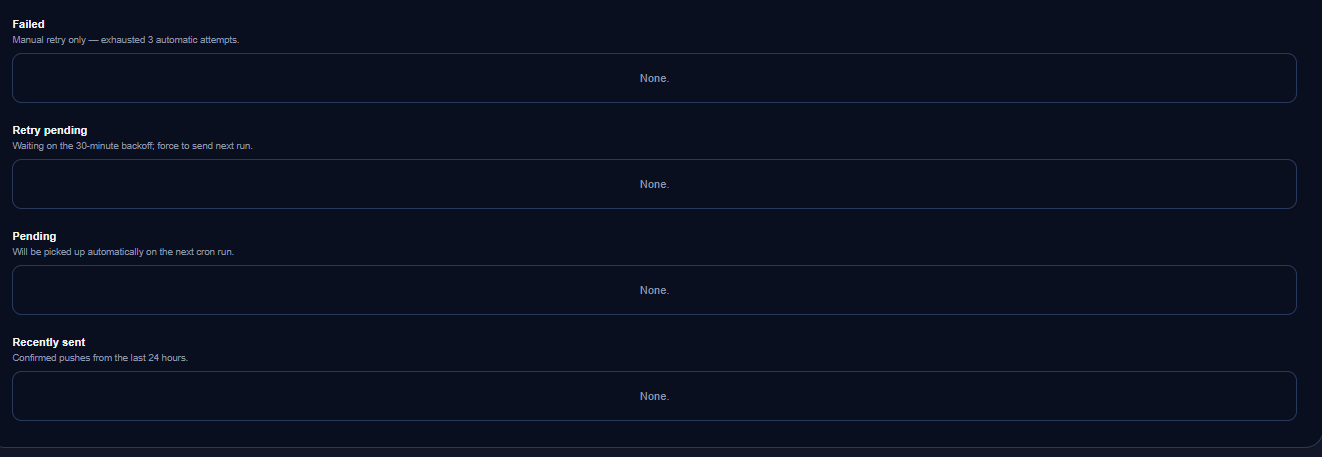
Each row is one outbound report for one ticket, with a state that tells you where it stands.
| State | Meaning | Needs action? |
|---|---|---|
| Pending | Queued by a completion, waiting to be sent. Sends when someone clicks Upload. | Make sure it gets uploaded. |
| Sending | Currently being transmitted. | No — it's in flight. |
| Sent | Successfully transmitted to the call centre. | No — done. |
| Retry pending | A send hit a temporary problem and will be retried automatically. | Usually no — it self-retries. Investigate if it lingers. |
| Failed | A send failed for a real reason and won't retry on its own. | Yes — investigate and retry. |
| Superseded | A newer report for the same ticket replaced this one. | No — expected (de-duplication). |
Pending rows are the compliance ones to watch. A pending row means a completed ticket whose report hasn't been sent yet — it's waiting for an Upload click. A queue full of old pending rows means completions aren't being uploaded.
Filtering by Call Centre
The queue mixes reports for every call centre. Use the call-centre filter to focus on one — Ontario One Call, Irth, or private — so you can see, for example, whether your Irth pushes specifically are going through.
Every row carries a source call-centre badge so you can tell at a glance which centre a report is bound for:
- On1Call — bound for Ontario One Call.
- Irth — bound for Before You Dig Partners / IRTHNet.
- Private — these never push; they're handled by customer email instead and won't appear as outbound pushes.
Push Statistics
Above the queue, a per-call-centre stats strip summarises how your pushes are doing — counts of sent versus failed for each centre. A rising failure count for one centre points you straight at where to look.
Glance at the stats strip first. If On1Call shows healthy numbers but Irth shows failures, you've narrowed the problem to the Irth integration before opening a single row.
Run Push Queue Now
This is the administrator escape hatch — a full flush of everything waiting.
The normal way reports go out is the Upload buttons on the tickets board (see the Uploading Tickets guide). But if reports get stranded — completions that were never uploaded, or retries waiting on the schedule — Run Push Queue Now sends everything that's ready in one go: pending rows and retry-pending rows alike.
- Open the Maintenance tab.
- Click Run Push Queue Now.
- LocateOps attempts every sendable row and reports the result.
Use this when something is stuck, not as the routine path — locators should still upload their own work so it's reviewed before sending. Run Push Queue Now is the catch-all for anything that slipped through.
The background system also auto-retries retry-pending rows on a schedule, but it never auto-sends fresh pending rows — those always wait for a human (an Upload click or Run Push Queue Now). That's the manual-upload model.
Marking Items Investigated
When you've looked into a problem row and it's accounted for, you can mark it investigated so it stops drawing attention. This is the same idea as marking a reconciliation item investigated — it acknowledges “I've handled this” without faking a successful send.
A Typical Maintenance Check
A good daily or weekly routine:
- Open the Maintenance tab and glance at the stats strip — any centre with failures?
- Filter to Failed rows. Open a few to read the error.
- Fix the root cause if there is one (a bad credential, say), then retry — or Run Push Queue Now to flush everything ready.
- Check for a backlog of old Pending rows — those are completions that were never uploaded. Chase them down or run the flush.
- Mark anything you've resolved as investigated.
Common Scenarios
“A completion never reached the call centre.”
Find the ticket's row in the queue. If it's Pending, it was never uploaded — run the flush or have the locator upload. If it's Failed, open it for the error and retry.
“All of one company's Irth pushes are failing.”
Filter to Irth, read the error on a failed row. It's often a credential or response-code issue — check the company's Irth credential, fix it, and retry.
“There's a big backlog of pending rows.”
Completions aren't being uploaded. Run Push Queue Now to clear the backlog, then remind the team to upload at end of shift.
“A row says superseded — did it fail?”
No. Superseded means a newer report for the same ticket replaced it. That's normal de-duplication, not an error.
Gotchas & Tips
Pending rows are unsent completions. A backlog means uploads are being skipped — a compliance risk.
Run Push Queue Now is the escape hatch, not the routine. Locators should still upload their own work.
Failed needs you; retry-pending self-heals; superseded is normal.
Private tickets don't push — they're emailed to the customer, so they won't appear as outbound pushes.
Read the stats strip first to narrow which call centre has a problem.
Mark resolved rows investigated to keep the queue's attention list clean.
Can't find what you need? We respond personally to every message.