About Utility Owners
A utility infrastructure owner is a public agency, private corporation, or municipality that holds, operates, and maintains the buried and above-ground public-service networks — water, gas, electricity, telecommunications, and the like — that locate work is meant to protect. LocateOps gives these owners a dedicated, read-only window into the locate work that touches their facilities.
We've built workflows specifically for utility owners. In LocateOps you can view the completed locate packages produced by the Locate Service Providers (LSPs) working on our platform, and track the tickets called in to your one-call centre that involve your network — and the status of each. That gives you visibility into both finished locates and work still in progress against your facilities, without ever touching a locate company's data.
This guide has two audiences. If you're a utility-owner user, the first half is your home. If you're a locate-company administrator deciding who gets to see your tickets, jump to Granting Access. Site administrators set up the owner organisations themselves — see the end.
Everything a utility owner does is read-only against the locate company's data. Owners can view tickets they've been granted access to and run their own private reviews — they can never edit a locate company's work.
For Utility-Owner Users
As a utility-owner user you belong to a utility-owner organisation and work in a focused, owner-only area of LocateOps.
Your roles
Utility-owner organisations have three roles, each with more reach than the last:
| Role | Can |
|---|---|
| Viewer | View the tickets your organisation has access to. |
| Auditor | View tickets, plus mark them for your own review and complete that review. |
| Admin | Everything an auditor can, plus manage your org's users, settings, station codes, and request/revoke access to locate companies. |
Your home and tickets
Signing in takes you to your owner home — a tile per locate company you have access to. Open a company to see its tickets, and open a ticket to see the read-only detail. You only ever see tickets that (a) belong to a company that granted your organisation access, and (b) involve one of your organisation's utilities.
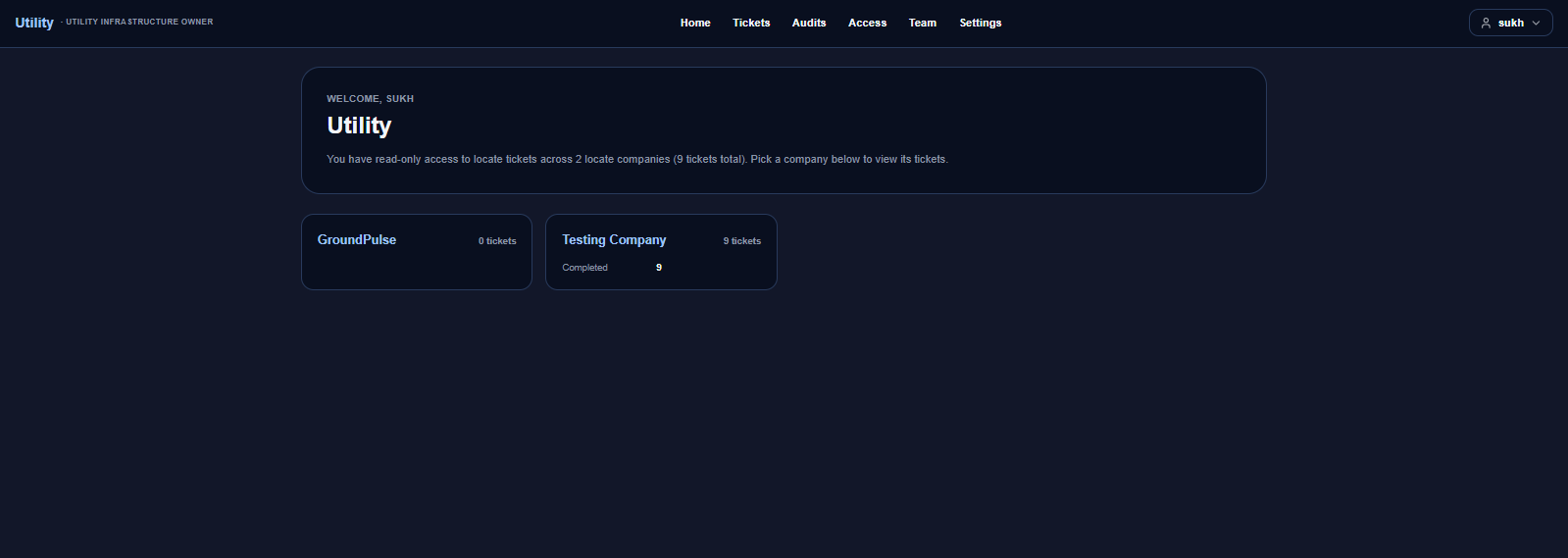
Which tickets you see is driven by your organisation's station codes — the utility codes that identify your facilities. A ticket appears to you only when it includes one of those codes.
Requesting access to a locate company
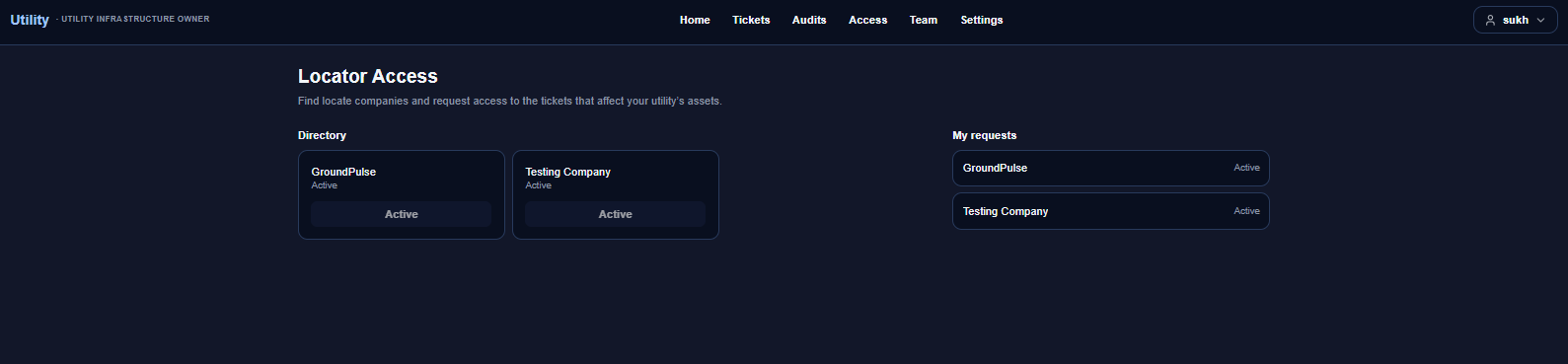
If you're an admin for your organisation, you can request access to a locate company that has opted into the directory:
- Open Access in your owner navigation.
- Browse the directory of locate companies that allow access requests.
- Request access to the one you need — it goes to that company's administrators to approve.
- Track the outcome under your requests; once approved, the company appears on your home.
Either side can later revoke an active grant. A revoked or rejected request can be re-requested.
Your team, settings & station codes
- Team — org admins invite and manage the organisation's users (viewer / auditor / admin).
- Settings → Station codes — org admins set the organisation's utility codes. These apply across every locate company you're granted access to, and they're what decide which tickets you can see.
Private owner audits
Auditors and admins can run a private review of a locate they can see: mark it for your own audit, which freezes a snapshot of what you can see, then approve or reject it. This is entirely your organisation's internal quality process — it has no effect on the locate company's ticket or workflow.
A private owner audit is a one-sided review for your own records. The locate company doesn't see it and isn't notified.
Granting Access — For Locate-Company Admins
Utility owners only see your tickets if you let them. As a locate-company administrator you control discoverability and approve each grant. You need the grant-access permission.
Opt into the directory
By default your company is not discoverable. To let utility owners find you and request access, turn on the directory opt-in on the Utility Owner Access settings page. Until you opt in, no owner can request access to your company.
Approving and revoking requests
- When an owner organisation requests access, you'll see a pending-request signal on your Settings index.
- Open Settings → Utility Owner Access to review it.
- Approve to grant read-only access, or Reject it.
- Revoke an active grant any time — access stops immediately.
A grant gives the owner organisation read-only visibility into the tickets that involve their utilities — nothing more. They can't edit, complete, or interfere with your work. But it is real visibility into your locates, so approve deliberately.
Approving uses your existing grant-access permission — there's no separate utility-owner login on your side. Notifications for pending requests are an in-app banner by default.
Setting Up Owner Organisations — For Site Admins
Utility-owner organisations are created and managed by site administrators, under Settings → Utility Owner Orgs. From there a site admin (or an org's own admin) invites users into the organisation by email, using a platform invitation.
- Create the organisation (its name and utility).
- Invite its first admin, who can then invite the rest of the team.
- The organisation's admins manage their own users, station codes, and access requests from there.
A utility-owner user belongs to an owner organisation, never to a locate company — and a person can't be both. Moving someone between organisations means deactivating them and re-inviting.
Common Scenarios
“A utility owner asked why they can't see a ticket.”
Two things must be true: your company has an active grant to their organisation, and the ticket involves one of their utility station codes. If either is missing, the ticket won't appear to them.
“We want to stop a utility owner from seeing our work.”
Open Settings → Utility Owner Access and revoke their grant — access ends immediately. You can also opt out of the directory to stop new requests.
“An owner request is sitting unactioned.”
Look for the pending-request banner on your Settings index, open Utility Owner Access, and approve or reject it.
“Owner can't see tickets even after we approved them.”
Check that the owner organisation has set its station codes — without them, no ticket matches, even with an active grant. That's set on the owner's side.
Gotchas & Tips
Utility owners are read-only. A grant is visibility into your locates, never edit access.
Two conditions gate visibility: an active grant and a matching utility station code.
Your company must opt into the directory before owners can request access — it's off by default.
An owner's private audit doesn't touch your ticket — it's their internal review.
Revoking a grant is immediate — it's the clean way to cut off access.
Can't find what you need? We respond personally to every message.