About Reports
The Reports module answers two kinds of question: “how much work did we do, and who did it?” (productivity and volume analytics) and “did everything the call centre sent us actually get into LocateOps, and did our completions get sent back?” (reconciliation). This guide covers both.
Open Reports from the sidebar. You need reporting permission to see it. Reports run live against your data, with a manual Refresh button — they don't update on their own while you're looking.
Building a Report
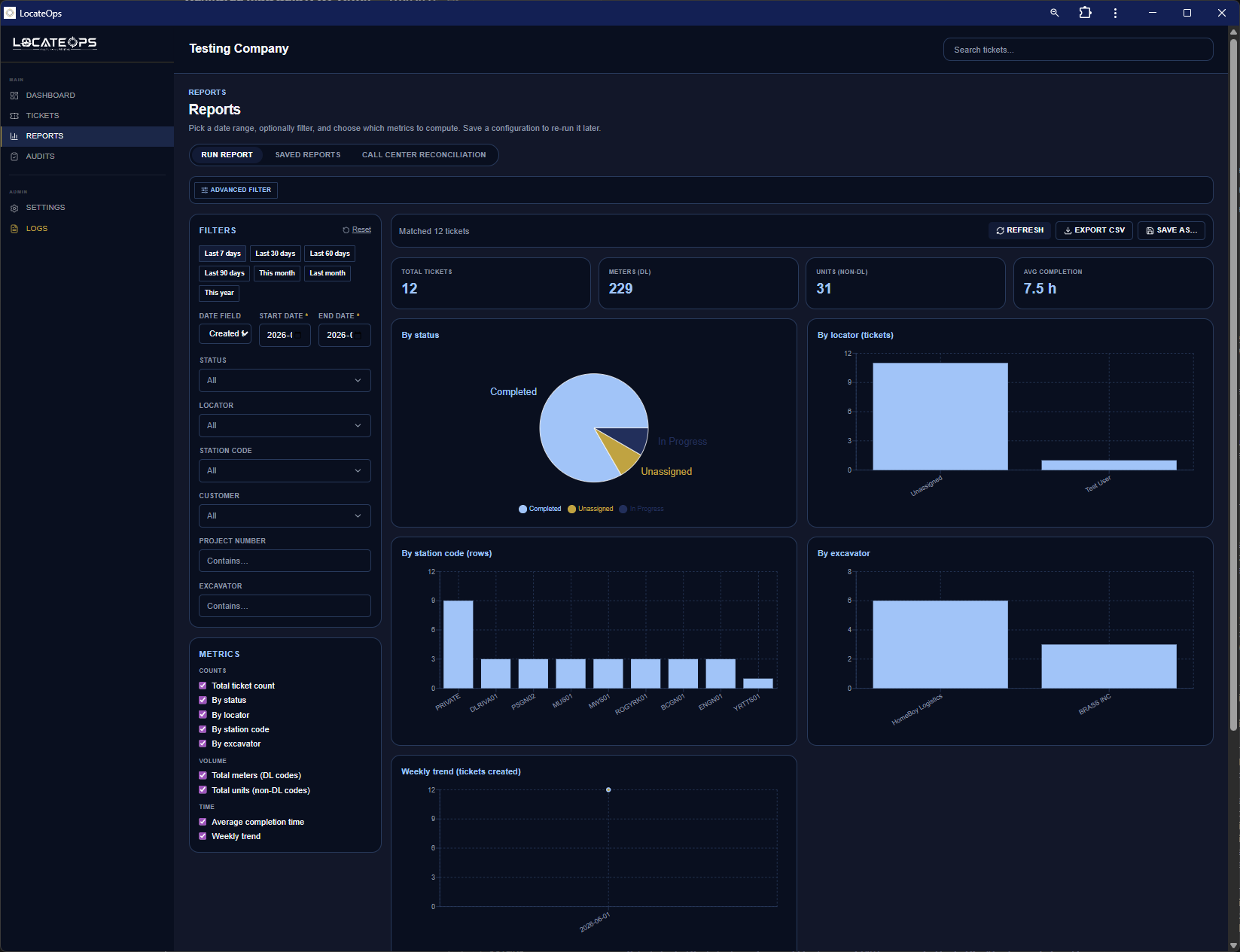
A report is a date range plus optional filters, turned into charts and a CSV you can download.
Choose the date range and date field
- Set the start and end dates (required).
- Choose which date the range applies to — when the ticket was created, called in, completed, cancelled, or its work-to-begin date.
Add filters
Narrow the report with any combination of:
- Status — one or more ticket statuses.
- Locators — specific people.
- Station codes — specific utilities.
- Customers — specific customers.
- Excavator / project number — text matches.
Read the charts
Results render as charts — volume by status, by locator, by excavator, daily trends, and so on. Each chart shows the top entries; smaller ones are folded into an “Other” bucket so the chart stays readable.
Reports cap very large result sets to stay responsive. If you're reporting across a huge range, narrow the filters for a faster, clearer result.
Export to CSV
Click Export CSV for a spreadsheet dump of the report — a fixed, multi-section layout (it isn't column-customisable like the tickets-board export). Good for sharing numbers or further analysis in Excel.
Save a report
If you run the same report regularly, save it. A saved report remembers its filters and metrics. You can keep it private or mark it shared so the whole team can run it.
Call-Centre Reconciliation
This is the safety net that catches gaps between what the call centre transmitted and what LocateOps actually has. It's the most operationally important report.
Each night, the call centre sends a digest of every locate it transmitted to you that day. LocateOps compares that list against your tickets and shows three buckets:
| Bucket | Meaning | Action |
|---|---|---|
| Matched | The call centre transmitted it and you have the ticket. All good. | None. |
| Missing | The call centre says it sent it, but you have no ticket for it. | Investigate — a locate may have been missed. |
| Extra | You have a ticket for the window that wasn't in the digest. | Informational — usually nothing to do. |
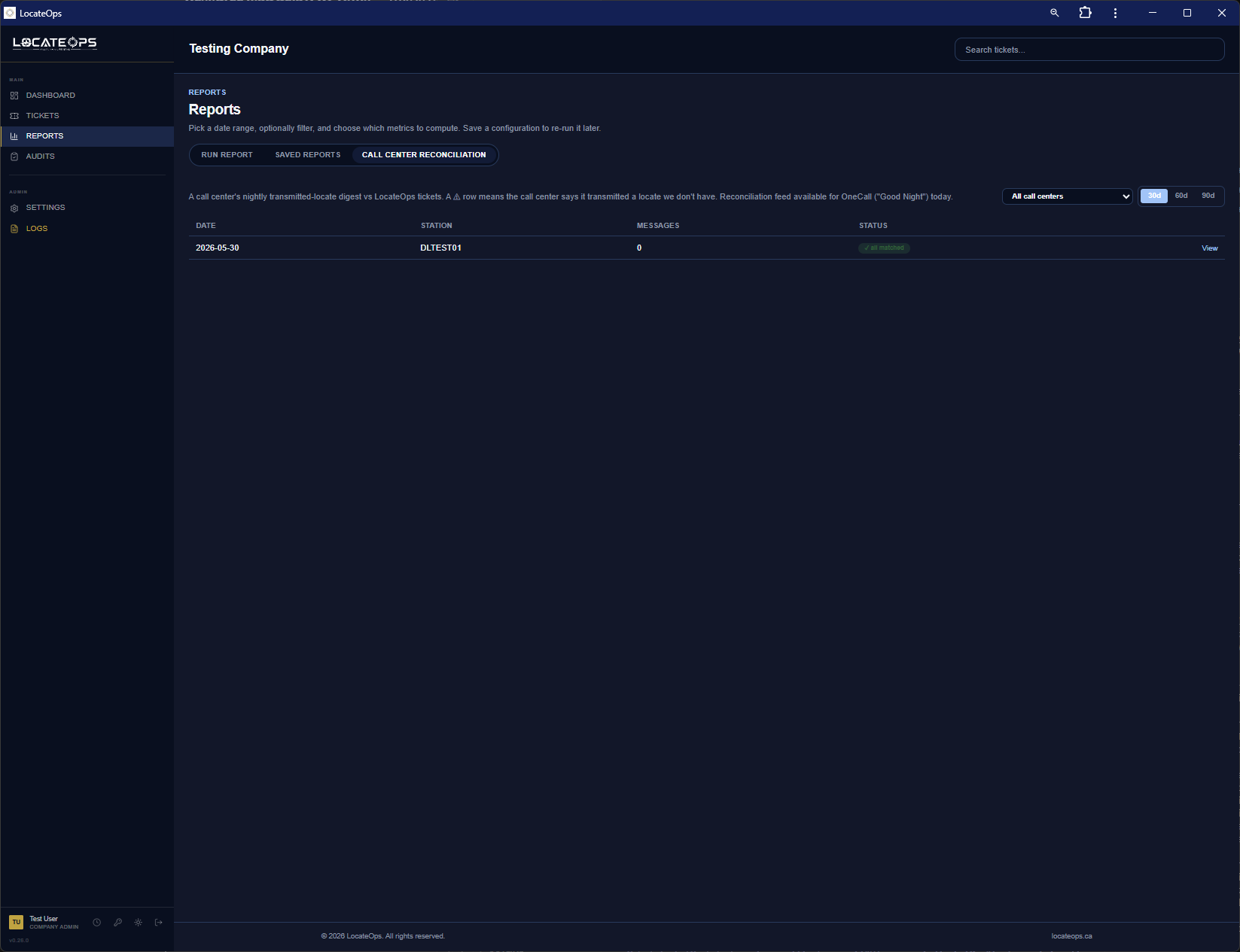
Reconciliation is computed live, so if a missing locate arrives late, it self-heals — it moves from Missing to Matched the next time you look. You're never chasing a stale list.
Marking items as investigated
When you've looked into a missing item and confirmed it's accounted for (a duplicate, intentionally not loaded, etc.), mark it investigated. It stops driving the alert without pretending a ticket exists.
- Investigated items move out of the “needs attention” count.
- Your investigated marks are remembered — even if the call centre re-sends a corrected digest for the same day.
Clear the missing list daily. An unreviewed “missing” item could be a locate your team never received — exactly the gap reconciliation exists to catch.
Aggregated vs per-call-centre views
By default reconciliation aggregates across every call centre. You can filter to a single call centre to focus. Note that only call centres that provide a nightly digest can be reconciled — today that's Ontario One Call. A call centre without a digest feed shows an honest “no reconciliation feed configured” message rather than fake data.
Push Statistics
Push stats tell you how your outbound status reports to the call centres are doing — how many sent, how many succeeded, how many failed.
Push stats are shown per call centre, so you can see at a glance whether your On1Call and Irth pushes are going through. A rising failure count is a signal to open the Maintenance tab and investigate (see the Maintenance Tab guide).

Push stats and reconciliation work together: reconciliation catches inbound gaps (locates you didn't receive); push stats catch outbound gaps (completions that didn't send).
When Reports Refresh
Reports are live but manual — they reflect your data at the moment you run them, and they only re-run when you click Refresh (or change the filters and re-run). They don't auto-refresh while open, so if you've had a report up for a while, refresh it before trusting the numbers.
Reconciliation data updates as the nightly digests arrive and as tickets land — refreshing the tab recomputes the matched/missing/extra buckets against the current state.
Common Scenarios
“How many locates did each person complete last month?”
Set the date range to last month, choose the completed date field, and look at the by-locator chart. Export to CSV if you need the exact numbers.
“The reconciliation tab shows 3 missing.”
Investigate each one — find out whether the locate was received under a different number, was a duplicate, or genuinely never arrived. Mark each investigated once resolved.
“Our push failure count is climbing.”
Open the Maintenance tab to see the failed pushes and retry them. A spike usually means a call centre was briefly unreachable or a credential needs attention.
“The numbers look out of date.”
Click Refresh — reports don't update on their own while the page is open.
Gotchas & Tips
Reports don't auto-refresh. Click Refresh before trusting on-screen numbers.
Don't ignore “missing” reconciliation items — they can be locates your team never received.
Only call centres with a nightly digest can be reconciled (Ontario One Call today). Others show an honest “no feed” state.
Reconciliation self-heals — late-arriving locates move from Missing to Matched automatically.
Save and share the reports you run often so the whole team uses the same definitions.
Pair reconciliation (inbound) with push stats (outbound) for the full picture of what's flowing in and out.
Can't find what you need? We respond personally to every message.